
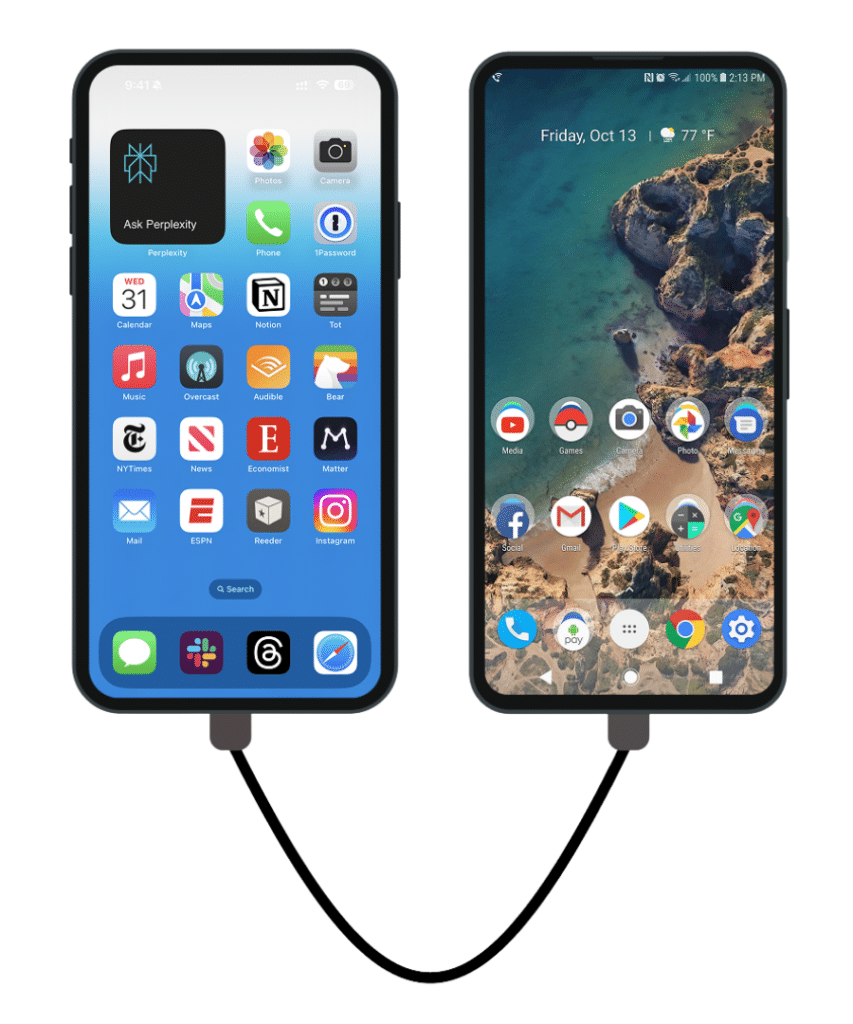
Switching from iPhone to Android is exciting until you realize years of photos, videos, and memories are sitting on the old device. If you are figuring out how to transfer photos from an old iphone to a new android phone, you have several reliable options: syncing through the cloud, copying with a USB cable and a computer, transferring directly between the phones, or using a wireless transfer app. This guide walks through each method step by step, explains how to handle tricky formats like HEIC and Live Photos, and shows you how to verify that everything arrived safely before you wipe the old iPhone.
Get Both Phones Ready First
A few minutes of preparation prevents most transfer headaches. Start by charging both phones to at least 50 percent, or keep them plugged in during the move, since large photo libraries can take a while to copy. Connect both phones to a stable Wi-Fi network rather than mobile data; uploading thousands of photos over cellular can burn through a data plan and stall halfway.
On the iPhone, check how many photos and videos you actually have by opening the Photos app and scrolling to the bottom of the Library tab, where the total count appears. Then check the free space on the new Android phone under Settings and then Storage. Your photo library needs to fit with room to spare, so if the Android is nearly full, free up storage space on the old Android phone first by removing apps and files you do not need. Finally, update both phones to the latest software available, since newer versions handle transfers and photo formats more smoothly.
Method 1: Sync Everything With Google Photos
Google Photos is the simplest method for most people because it works wirelessly and handles the iPhone-to-Android jump gracefully. Install the Google Photos app on your iPhone and sign in with the same Google account you use, or plan to use, on the Android phone. Open the app, tap your profile picture, go to Photos settings, and turn on Backup. Choose your upload quality and let the iPhone upload your entire library. This can take hours or even a day or two for very large libraries, so leave the phone on Wi-Fi with the app open when you can.
Once the backup finishes, open Google Photos on the Android phone with the same account. Your entire library will appear, organized by date, without any cables involved. From there you can choose to keep the photos in the cloud, download favorites for offline access, or both. One thing to watch is storage: Google accounts include a limited amount of free storage shared across Photos, Drive, and Gmail. If your library is larger than the free allowance, you may need to manage space or adjust your storage plan before the backup completes. Clearing out unneeded files from your Google account beforehand gives the upload more room to finish.
Method 2: Transfer With a USB Cable and a Computer
If you prefer a direct copy without uploading to the cloud, a computer in the middle works well. Connect the iPhone to a Mac with a cable, unlock the phone, and trust the computer when prompted. On newer Mac systems, open the Photos app or use Image Capture to import the photos; on Windows, connect the iPhone, unlock it, and open File Explorer, where the phone appears as a device you can browse. Copy the DCIM folder, or select the photos you want, to a folder on the computer.
Next, connect the Android phone to the same computer with a USB cable, unlock it, and set the USB mode to file transfer when prompted. Copy the photos from the computer into the DCIM or Pictures folder on the Android phone. When you disconnect and open the gallery app, the photos should appear. This method is slower to set up but gives you a full local copy on the computer as a bonus backup, which is worth having regardless of which transfer method you choose.
Method 3: Copy Directly During Android Setup
Android’s setup process includes a built-in data transfer option that can pull photos straight from the iPhone. When you first power on the new Android phone and reach the setup screens, choose the option to copy apps and data from an old device. Connect the two phones with a cable, using an adapter if the connectors differ, and follow the prompts to select what to copy, including photos and videos.
The transfer runs over the cable and can take a while for large libraries, so keep both phones plugged into power. If you already finished setting up the Android phone and skipped this step, you can still do a manual cable copy: connect the iPhone to the Android with a compatible cable or adapter, and use the Android file manager to browse the iPhone’s photo folders and copy them over. It is less guided than the setup wizard, but it gets the job done.
Method 4: Wireless Transfer Apps and Shared Albums
Several third-party transfer apps can move photos between iPhone and Android over a direct Wi-Fi connection, with no computer or cloud account required. The general pattern is the same: install the app on both phones, connect them through the app’s pairing process, select photos and videos, and let the transfer run. Because these apps change often, pick one with strong recent reviews and a clear privacy policy, and keep both phones on the same Wi-Fi network during the move.
Another lightweight option for smaller batches is a shared album link. On the iPhone, create a shared album in the Photos app, add the photos you want, and generate a public link. Open that link in the Android phone’s browser and download the photos. This is impractical for a library of ten thousand photos, but it is perfect for moving a few hundred favorites quickly. Cloud drives like Dropbox or OneDrive also work: upload from the iPhone app, then download from the Android app.
What to Do About HEIC and Live Photos
iPhones save photos in the HEIC format by default, and many also capture Live Photos, which are short video clips attached to still images. Most modern Android phones can display HEIC files without trouble, and Google Photos converts them seamlessly during backup. If you copy files manually with a cable, however, you may occasionally run into an app that does not recognize the format.
The fix is simple: convert the files. On a computer, free conversion tools can batch-convert HEIC to JPEG, and exporting from the Mac Photos app can produce JPEGs automatically. For Live Photos, the still image transfers normally while the motion portion may be saved as a separate short video file, depending on the method you use. If keeping every Live Photo’s motion matters to you, the Google Photos method preserves them most faithfully, so consider using it for at least those shots.
After the Move: Verify and Organize
Do not wipe or trade in the old iPhone until you have confirmed the transfer worked. Spot-check by comparing the photo count on the Android gallery with the count you noted on the iPhone, then open a random sample of photos and videos from different years to make sure they display correctly. Pay special attention to videos, since they are the most likely to fail silently during a transfer.
Once everything checks out, take a few minutes to organize. Create albums for the big categories that matter to you, such as family, travel, and work, and delete obvious duplicates or blurry shots you no longer need. Keep the iPhone untouched for at least a week as a safety backup before you reset it. And if the old iPhone is now your spare device, you can clean up iPhone storage without deleting photos to keep it useful without losing anything.
Common Mistakes to Avoid
- Deleting iPhone photos before verifying the transfer. Always confirm the photos open correctly on the Android before removing anything from the iPhone.
- Transferring over mobile data. Large libraries can consume enormous amounts of data. Use Wi-Fi for any cloud or wireless method.
- Forgetting videos and message attachments. Photos transfer easily, but videos, WhatsApp media, and photos saved inside chat apps are often missed. If you are also moving chats, learn how to transfer WhatsApp messages to a new phone so nothing gets left behind.
- Assuming albums transfer as albums. Most methods move the photos themselves, not your iPhone album organization. Expect to rebuild albums on the Android side.
- Running out of Android storage mid-transfer. Check free space before you start, and clear room first if needed, so the copy does not stall halfway through.
- Skipping a backup of the backup. Keep at least one extra copy of irreplaceable photos, whether in the cloud or on a computer, until you are fully settled on the new phone.
Frequently Asked Questions
Will my photos lose quality during the transfer?
Direct cable copies and original-quality cloud backups preserve full quality. If you choose a storage-saving or compressed upload option in Google Photos, files are slightly compressed to save space. Check the backup quality setting before a large upload if maximum quality matters to you.
How long does the transfer take?
It depends on the size of your library and the method. A few thousand photos over Wi-Fi might take an hour or two, while tens of thousands of photos and videos can take the better part of a day. Cable transfers are usually faster than cloud uploads for very large libraries.
Do I need a computer to move photos from iPhone to Android?
No. Google Photos sync, the Android setup wizard cable copy, and wireless transfer apps all work without a computer. A computer is only needed if you prefer the manual USB method or want an extra local backup.
What happens to my iPhone albums and favorites?
The photos themselves transfer, but album structures and favorites generally do not carry over. Your photos will appear in the Android gallery organized by date, and you can recreate albums and mark new favorites after the move.
Can I transfer Live Photos to Android?
The still image portion transfers normally with every method. The short video portion is preserved best through Google Photos; with manual cable copies it may arrive as a separate video file or be dropped, so use the cloud method if Live Photos matter to you.
Is Google Photos free for backing up my iPhone library?
Google Photos is free to use, but uploads count against the storage included with your Google account, which is shared with Gmail and Drive. Small libraries fit comfortably; very large ones may require freeing space or purchasing additional storage.










2 thoughts on “How to Transfer Photos From an Old iPhone to a New Android”
Comments are closed.