

Learning how to clean up iPhone storage without deleting photos is the answer to one of the most common iPhone frustrations: the dreaded “Storage Almost Full” warning. Your photos are precious — nobody wants to sacrifice memories to make room for an app update. The good news is that photos are rarely the real problem. Hidden caches, old message attachments, unused apps, and forgotten downloads are usually eating far more space than you think. This guide walks you through every effective method to free up gigabytes of iPhone storage while keeping every single photo exactly where it is.
First: See Exactly What Is Eating Your Storage
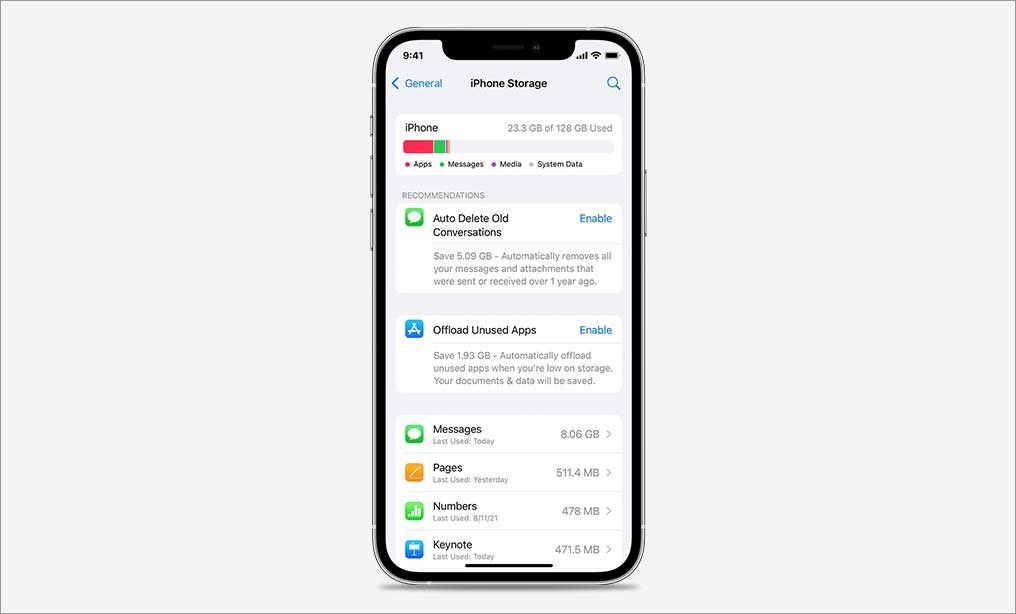
Before deleting anything, get a clear picture. Go to Settings, then General, then iPhone Storage. Your iPhone will take a moment to calculate, then show a color-coded bar and a list of apps sorted by size. Tap through the biggest entries — you will often find surprises, like a podcast app holding gigabytes of old episodes or a messaging app stuffed with video attachments. This screen is also where Apple offers personalized recommendations at the top, such as offloading unused apps or reviewing large attachments. Note your total available space now so you can measure your progress as you work through this guide.
Offload Unused Apps (Keep the Data, Free the Space)
Offloading is the single best storage trick most iPhone owners never use. When you offload an app, the iPhone deletes the app itself but keeps all of its documents and data. The app icon stays on your home screen with a small cloud symbol, and tapping it re-downloads the app instantly with everything intact.
To offload manually, go to Settings, then General, then iPhone Storage, tap any app you rarely use, and choose Offload App. Games you finished, travel apps from old trips, and retail apps you open twice a year are perfect candidates. To automate it, go to Settings, then App Store, and turn on Offload Unused Apps — your iPhone will then automatically offload apps you have not opened in a while whenever storage runs low. This one setting can free up several gigabytes with zero effort and zero risk to your photos.
Clear the Safari Cache and Website Data
Your browser quietly accumulates cached files, cookies, and offline website data that can grow surprisingly large over time. To clear it, go to Settings, then Apps, then Safari (or Settings then Safari on older iOS versions), and tap Clear History and Website Data. This removes browsing history, cookies, and caches in one move. You will be signed out of websites, so make sure you know your important passwords first. If you use Chrome or another browser, open the browser’s own settings and look for its Clear Browsing Data option — each browser manages its own cache separately.
Delete Old Message Attachments (The Hidden Space Hog)
Every photo, video, GIF, and voice message ever sent or received in the Messages app is stored on your phone — and years of conversations can add up to many gigabytes. Here is the key point: deleting these attachments does not touch your Photos app library at all. Your camera photos are completely separate.
Go to Settings, then General, then iPhone Storage, then tap Messages. You will see categories like Photos, Videos, and GIFs with their sizes. Tap into each and delete the large attachments you no longer need — old memes, duplicate videos, and blurry shots people sent you. To prevent future buildup, go to Settings, then Apps, then Messages, then Keep Messages, and change it from Forever to 1 Year or 30 Days. Your iPhone will then automatically prune old message history going forward.
Review and Trim Large Apps
Back on the iPhone Storage screen, tap your biggest apps one by one and look at the breakdown between the app size and its Documents and Data. Social media apps, video editors, and music apps often balloon with cached content. For apps with a built-in cache-clearing option, use it. For apps without one, the fix is to delete and reinstall the app — this wipes the bloated cache while your account data (which lives in the cloud) restores when you sign back in. Streaming apps like Netflix, Spotify, and YouTube deserve special attention: check each app’s settings for downloaded content you forgot about and remove downloads for shows, movies, or playlists you already finished.
Use iCloud Photos the Smart Way
This is the setting that solves the photo-storage dilemma permanently. With iCloud Photos turned on and Optimize iPhone Storage enabled, your iPhone keeps lightweight previews of your photos while the full-resolution originals live safely in iCloud. You can view, share, and edit every photo exactly as before — the full version downloads on demand whenever you need it.
To enable it, go to Settings, tap your name at the top, then iCloud, then Photos, and turn on Sync this iPhone. Then select Optimize iPhone Storage. On a phone with a large photo library, this single change can free up tens of gigabytes while keeping every photo accessible. Note that this uses iCloud storage space, so check that your iCloud plan has room — Apple includes a small amount free, with affordable paid tiers for larger libraries.
Clean Up Downloads, Podcasts, and Voice Memos
Several built-in apps quietly stockpile files. Open the Files app and check the Downloads folder and the On My iPhone location for forgotten PDFs, installers, and attachments — delete what you do not need. In the Podcasts app, remove downloaded episodes you have already heard, and check its settings to limit automatic downloads going forward. The Voice Memos app can hold surprisingly large recordings; delete old memos you no longer need, and remember to clear the Recently Deleted folder inside the app, since deleted memos sit there for 30 days still occupying space. Do the same Recently Deleted check in the Files app.
Update iOS and Restart Your iPhone
This sounds too simple, but it works. Software updates often include storage optimizations, and the mysterious “System Data” category — which includes temporary caches and logs — tends to shrink after an update and a restart. Go to Settings, then General, then Software Update to check for updates. After updating, restart your phone by holding the side button and either volume button, then sliding to power off. Many users report recovering a gigabyte or more of System Data space from this alone.
What About “Other” or “System Data” Storage?
If a large chunk of your storage shows as System Data, that category holds caches, logs, Siri voices, and temporary files that iOS manages automatically. You cannot delete it directly, but the methods in this guide — clearing browser caches, reinstalling bloated apps, updating iOS, and restarting — all shrink it indirectly. Avoid third-party “cleaner” apps that promise to wipe it; they cannot access iOS system files and the reputable ones simply do the same cache-clearing you can do yourself.
Mistakes to Avoid
- Deleting photos in a panic: Photos are almost never the best target. Work through caches, attachments, and unused apps first — you will usually free enough space without touching a single memory.
- Ignoring the Messages attachments screen: This is the most overlooked storage hog on the iPhone. Years of shared videos hide here.
- Keeping every app “just in case”: Offloading keeps your data and re-downloads in seconds. There is no reason to hoard unused apps.
- Forgetting Recently Deleted folders: Deleted files in Photos, Files, and Voice Memos keep occupying space for 30 days. Empty those folders to reclaim space immediately.
- Letting podcasts auto-download forever: One settings change stops the endless accumulation of episodes you will never hear.
- Paying for more iCloud before cleaning: Always free up local storage first. You may find you do not need the upgrade at all.
Frequently Asked Questions
Will offloading apps delete my data?
No. Offloading removes only the app binary and frees its space; all documents, settings, and data stay on your phone. Reinstalling the app restores everything exactly as it was.
Does deleting message attachments delete my photos?
No. Message attachments and your Photos app library are completely separate. Deleting old photos and videos from Messages only removes those copies from your conversations — your camera roll stays untouched.
How does Optimize iPhone Storage work?
It stores full-resolution photos and videos in iCloud and keeps smaller, space-saving versions on your iPhone. You can still view and share every photo normally; the full version downloads automatically when you open, edit, or share it.
Why is System Data taking up so much space?
System Data includes caches, logs, temporary files, and Siri voices. It grows over time and shrinks after iOS updates, restarts, and cache clearing. There is no direct delete button — managing it means managing the caches that feed it.
Is it safe to delete and reinstall apps to clear cache?
Yes, for apps where your data lives in your account (social media, streaming, banking). Your content restores when you sign back in. Be cautious with apps that store data only on the device, such as some authenticator or notes apps — check before deleting.
How often should I clean up iPhone storage?
A quick check every few months is plenty for most people. Turn on automatic app offloading and message auto-deletion once, and your iPhone will largely maintain itself going forward.