Figuring out how to avoid roaming charges while traveling abroad on iPhone can save you hundreds of dollars on a single trip. Few travel surprises sting like opening your phone bill after a vacation and finding a four-figure charge for data you barely remember using. International roaming — when your iPhone connects to a foreign carrier’s network — is one of the most expensive ways to stay connected, with some carriers charging per megabyte at rates that turn a few days of maps and messaging into a small fortune.
The good news: with about twenty minutes of preparation before you fly, you can travel with full maps, messaging, and email access while paying little or nothing in roaming fees. This guide covers exactly which iPhone settings to change, how eSIMs and carrier travel plans compare, the free workarounds experienced travelers use, and the mistakes that cause nearly every surprise bill.
What Roaming Charges Are (and Why They Are So Expensive)
When you use your iPhone at home, your carrier’s own towers carry your calls and data at the rates in your plan. The moment you land in another country, your carrier has no towers there — so your phone connects through a local carrier, which bills your home carrier for the privilege, which then bills you at a steep markup. That chain of middlemen is why roaming data can cost dramatically more than domestic data.
On an iPhone, roaming charges typically come from three sources: data roaming (apps using cellular data abroad — maps, email sync, photo backups, social feeds), international calls and texts (charged per minute or per message on many plans), and background activity you never consciously started (automatic app updates, iCloud photo uploads, and email fetching continue silently in the background). That last category is the real budget-killer: travelers who “barely used” their phone still get billed because their phone was busy all week without them.
Before You Leave: 20 Minutes of Prep
Almost every roaming horror story was preventable at home. Do these five things before your flight:
1. Check What Your Carrier Already Includes
Before buying anything, find out what you already have. Some US carrier plans include generous international perks — for example, certain T-Mobile plans include unlimited texting and a block of high-speed data in 200+ countries at no extra charge, while AT&T and Verizon typically sell international day passes (often around $10–12 per day) that let you use your domestic plan abroad. Log into your carrier’s app or website, or call them, and ask specifically: “What happens to my data, calls, and texts in [destination country], and what will it cost per day?” Write down the answer. Many travelers discover they were already covered — or that a simple plan add-on beats every alternative.
2. Set Up an eSIM (the Modern Traveler’s Best Friend)
If your iPhone supports eSIM (iPhone XS and later, including all recent models), this is the single highest-value move you can make. An eSIM is a digital SIM card you buy online and install by scanning a QR code — no physical card, no store visit abroad. Providers like Airalo, Nomad, and Ubigi sell prepaid data packages for specific countries or regions, often just a few dollars for a week of data.
Install the eSIM before you leave, while you are on home Wi-Fi — installation sometimes requires an internet connection. In Settings → Cellular, you will then see two lines: your home line and the travel eSIM. Set the travel eSIM as your cellular data line when you land, and keep your home line active only for calls and texts (or turn it off entirely to be safe). You keep your regular phone number for iMessage and FaceTime while all data flows through the cheap local-rate eSIM.
3. Download Everything You Can on Wi-Fi
Offline preparation eliminates entire categories of data use. In Google Maps or Apple Maps, download offline maps of every city you will visit. Download movies, shows, music playlists, and podcasts for flights and downtime. Save boarding passes, hotel confirmations, and itineraries to your Files app or take screenshots. Update all your apps and install any pending iOS update before you leave — an iOS update downloading over roaming data is a classic budget disaster.
4. Turn On Wi-Fi Calling
Wi-Fi Calling (Settings → Phone → Wi-Fi Calling) lets your iPhone make and receive regular phone calls over Wi-Fi instead of cellular. Abroad, this means you can call US numbers from your hotel’s Wi-Fi as if you were home — on many carriers, these calls are billed at domestic rates or free. Enable it before departure and test it once on your home Wi-Fi so you know it works.
5. Free Up Storage and Back Up
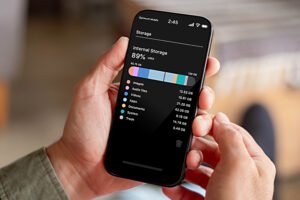
A full iPhone causes its own travel headaches: no room for offline maps, no space for trip photos, failed eSIM installs. Clean up storage before you go and run a full iCloud or computer backup. If anything goes wrong abroad — a lost phone, a settings mishap — a fresh backup is your safety net. Our guide on how to clean up iPhone storage without deleting photos walks through the process step by step.
At Landing: The 60-Second Settings Check
The moment you land and your phone latches onto a foreign network, open Settings → Cellular → Cellular Data Options and verify Data Roaming is OFF for your home line (unless you deliberately bought a carrier travel pass). This single toggle is the master switch: with it off, your home line cannot rack up data charges no matter what your apps try to do.
Then switch your data line to the travel eSIM (Settings → Cellular → Cellular Data → select the eSIM). If you did not buy an eSIM and plan to rely on Wi-Fi, leave data roaming off and connect to airport Wi-Fi. Also enable Low Data Mode (Settings → Cellular → Cellular Data Options → Low Data Mode) on whichever line carries data — it pauses automatic updates and background syncing, stretching a prepaid data package much further.
Your Options Abroad: eSIM vs. Carrier Pass vs. Local SIM vs. Wi-Fi
Each approach fits a different kind of trip. Here is an honest comparison:
Travel eSIM (Best for Most Trips)
Pros: cheapest per gigabyte, installed before departure, keep your number for iMessage/FaceTime, works the moment you land, easy to top up. Cons: data-only on most plans (no local phone number for voice calls — use WhatsApp or FaceTime Audio instead), requires an eSIM-compatible iPhone. Best for: trips of a few days to a few weeks where data matters most.
Carrier International Day Pass
Pros: zero setup — your number, plan, and apps work exactly like home; simplest option. Cons: the most expensive per day (typically around $10–12 daily with most major US carriers, often capped at a number of charged days per billing cycle); a two-week trip can cost more than the flight’s baggage fees. Best for: short business trips where convenience beats cost, or as a backup for arrival day.
Local Physical SIM
Pros: often the absolute cheapest option in-country, includes a local number for calls and ride-hailing apps. Cons: requires finding a shop, showing ID, and physically swapping SIMs (and keeping your tiny home SIM safe); you lose access to your regular number unless your iPhone is dual-SIM. Best for: long stays in one country — a month or more — where the savings compound.
Wi-Fi Only
Pros: completely free. Cons: no connectivity between hotspots — no maps while walking, no ride-hailing from the street, no messaging on the go. Best for: resort-style trips where you barely leave the hotel, or as a supplement to an eSIM.
For the typical one-to-two-week international trip, the winning combination is a travel eSIM for data plus Wi-Fi Calling and messaging apps for calls — full connectivity at a fraction of carrier roaming rates, with your regular number still reachable.
Free and Cheap Ways to Stay Connected
- iMessage and FaceTime over Wi-Fi or eSIM data are free — blue-bubble messages and FaceTime calls do not touch your carrier’s voice network. Make sure iMessage is set to your Apple ID email as well as your number so it keeps working even with your home line off.
- WhatsApp, Signal, and Telegram handle calls and texts to anyone worldwide over any data connection. Before the trip, nudge key contacts (family, travel companions) onto one of them.
- Google Voice gives you a free US number that calls and texts over Wi-Fi or data — handy as a backup line for two-factor authentication codes and calls home.
- Offline-first habits: screenshot directions before leaving Wi-Fi, star key locations in offline maps, and batch your photo uploads for the hotel each evening instead of letting iCloud sync continuously.
- Hotel and cafe Wi-Fi covers the heavy lifting — video calls, big uploads, streaming. A small travel router or your eSIM’s hotspot feature can share one connection across your devices.
Mistakes That Cause Nearly Every Surprise Bill
- Leaving Data Roaming on “just in case.” Background processes do not care about your intentions. If the toggle is on, apps will use data — and you will pay for it.
- Answering a call on your home line abroad. Incoming international calls can trigger per-minute charges on many plans, and even declining a call can sometimes incur a fee if it goes to voicemail. Let unknown numbers go, and call back over Wi-Fi.
- Letting iCloud Photos sync over cellular. A week of vacation photos uploading at full resolution over roaming data is one of the most common bill shock sources. Set Photos to sync on Wi-Fi only (Settings → Photos → Cellular Data → off).
- Forgetting about the hotspot. Tethering a laptop to your phone abroad burns through data at shocking speed — one software update on a laptop can eat an entire prepaid package. Disable hotspot or monitor it closely.
- Assuming “unlimited” means unlimited abroad. Domestic unlimited plans almost never extend their full terms internationally. Always confirm the international terms separately.
- Texting “STOP” style short codes or premium SMS. Verification texts and premium messages can carry per-message international fees. Use authenticator apps instead of SMS codes where possible.
When You Get Home
Do not just file the bill away. Open your carrier’s app within a few days of returning and review the international charges line by line while the trip is fresh — errors and misapplied day-pass charges are common and much easier to dispute immediately. If you were charged for roaming you believe your plan covered, call and ask politely; carriers routinely issue goodwill credits for first-time surprises. Then, before your next trip, save a note in your phone with what worked: which eSIM provider, which settings, what it cost. Future-you will be grateful.
One more privacy note for travelers: foreign networks and hotel Wi-Fi are also prime territory for location tracking and snooping. Our guide on how to stop apps tracking your location on iPhone and Android is worth a read before you connect to unfamiliar networks.
Frequently Asked Questions
Should I turn off data roaming on my iPhone when traveling abroad?
Yes — turn off Data Roaming for your home line (Settings → Cellular → Cellular Data Options) unless you have deliberately purchased a carrier international plan. This is the single most effective step to avoid roaming charges, because it blocks all cellular data on that line regardless of what your apps attempt in the background.
Does airplane mode stop roaming charges?
Airplane mode stops all cellular activity, so yes, it prevents roaming charges — but it also blocks calls and texts entirely. A better approach is leaving airplane mode off, disabling Data Roaming on your home line, and using a travel eSIM or Wi-Fi for data. That way you stay reachable without the roaming risk.
Can I use my iPhone abroad without any plan?
Yes. With Data Roaming off and Wi-Fi, your iPhone works fine for iMessage, FaceTime, email, maps (offline), and all apps — free of charge. Add a prepaid travel eSIM for a few dollars and you get full mobile data too, without ever touching your carrier’s roaming rates.
Do I get charged for receiving texts while abroad?
It depends on your carrier and plan. Many US carriers charge per incoming international text unless your plan includes international messaging. iMessages (blue bubbles) sent over Wi-Fi or eSIM data are free. To be safe, ask contacts to use iMessage or WhatsApp while you travel, and check your plan’s international text rates before you go.
Is an eSIM better than a local SIM card for travel?
For most travelers, yes. A travel eSIM can be bought and installed before departure, activates on landing, keeps your regular number working for iMessage and FaceTime, and costs only a few dollars. A local physical SIM can be cheaper for month-long stays in one country, but it means swapping cards and losing your home number unless your iPhone supports dual SIM.
Will Wi-Fi Calling work in another country?
Generally yes, as long as you enabled it before leaving (Settings → Phone → Wi-Fi Calling). Calls to US numbers over Wi-Fi are typically billed at domestic rates or free, depending on your carrier. It is one of the easiest ways to make real phone calls abroad without paying international voice rates.