
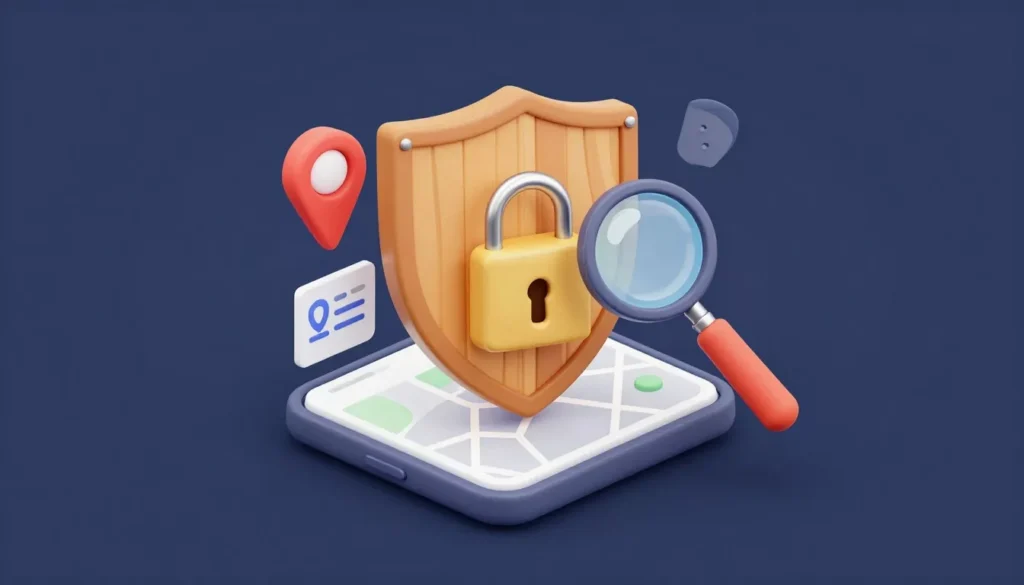
That weather app does not need to know where you are at midnight. Neither does the shopping app, the game, or the photo editor. Yet many apps quietly collect your location in the background, building a detailed record of where you go, when, and how often. If you want to know how to stop apps from tracking your location on your phone, this guide gives you exact, step-by-step instructions for both iPhone and Android — plus the deeper settings most people miss, and the common mistakes that leave tracking switched on.
How Apps Track Your Location (Even When You Are Not Using Them)
Your phone determines its position through several signals: GPS satellites, nearby Wi-Fi networks, Bluetooth beacons, and cell towers. Apps can request access to this position data, and on both iPhone and Android you grant that access through permission prompts. The catch is in the details: many apps ask for “always allow” background access, which lets them record your location around the clock — not just when the app is open.
This data is valuable. Advertisers use it to build profiles of your habits: where you shop, where you work, which doctor you visit. Data brokers buy and resell location histories. Some of this collection happens through permissions you granted years ago and forgot about. The good news is that both major phone platforms now give you granular control — you just have to know where the switches are.
First: See Which Apps Currently Have Your Location
Before changing anything, take inventory. On iPhone, go to Settings > Privacy & Security > Location Services to see every app with location access and its current permission level. On Android, go to Settings > Location > App location permissions (on some phones: Settings > Privacy > Permission manager > Location) for the same overview. You will probably be surprised — apps you barely use may hold “Always” access. Screenshot or note the list so you can work through it methodically.
How to Stop Apps Tracking Your Location on iPhone
Step 1: Review Location Services App by App
Open Settings > Privacy & Security > Location Services. Tap each app and choose the appropriate level: Never for apps with no legitimate need for your position (games, most shopping apps, utilities), Ask Next Time Or When I Share if you are unsure, or While Using the App for apps that genuinely need it sometimes, like maps or ride-sharing. Reserve Always for almost nothing — very few apps truly need background location, and this is the setting that enables round-the-clock tracking.
Step 2: Turn Off Precise Location Where It Is Not Needed
On each app’s location settings page, you will see a Precise Location toggle. When it is on, the app gets your exact coordinates; when off, it gets only your approximate area (within a few miles). A weather app or news app works perfectly well with approximate location. Turn precise location off for every app that does not need turn-by-turn accuracy, such as navigation or delivery apps.
Step 3: Limit System Services
Scroll to the bottom of Location Services and tap System Services. Here Apple lists its own location uses. Turn off anything you do not need: iPhone Analytics, Popular Near Me, Routing & Traffic, and Improve Maps can all go. Pay special attention to Significant Locations — this is Apple’s own log of places you visit frequently. You can view the history here and tap Clear History to erase it. Keep Find My iPhone on if you want to locate a lost device, but know what it does.
Step 4: Block Ad Tracking Requests
Go to Settings > Privacy & Security > Tracking and turn off Allow Apps to Request to Track. This stops apps from asking to follow your activity across other companies’ apps and websites for advertising — a separate but closely related form of tracking. With this off, apps must respect a global “do not track” stance instead of nudging you with individual prompts.
Step 5: Stop Location in Photos You Share
Every photo you take can embed GPS coordinates in its metadata. To strip location when sharing, open the Photos app, tap the photo, tap the share button, then tap Options at the top and turn off Location before sending. For a permanent fix for the Camera app itself, go to Settings > Privacy & Security > Location Services > Camera and set it to Never — your photos will simply have no location data at all. If your phone feels sluggish while you are digging through settings, these phone performance tips (written for Android but with principles that apply broadly) can help keep things running smoothly.
How to Stop Apps Tracking Your Location on Android
Step 1: Audit App Location Permissions
Open Settings > Location > App location permissions. You will see apps grouped by their access level: “Allowed all the time,” “Allowed only while in use,” “Ask every time,” and “Not allowed.” Tap each app in the “Allowed all the time” group and downgrade it — most apps work fine on Allowed only while in use, and many need no location at all (Don’t allow). Be strict here: background (“all the time”) access is the main engine of silent location tracking.
Step 2: Turn Off Precise Location Per App
Tap any app in the location permissions list and toggle off Use precise location unless the app genuinely needs exact positioning, like navigation or food delivery. Approximate location is enough for weather, news, and most other categories — and it reveals far less about your movements.
Step 3: Turn Off Google Location History
Google maintains its own location timeline separate from app permissions. Open the Google Maps app, tap your profile picture, then Your Timeline. Tap the three-dot menu or settings and turn off Location History, then delete existing history. Alternatively, go to Settings > Location > Location services > Google Location History on the phone itself. This stops Google from keeping a running log of everywhere you have been.
Step 4: Disable Wi-Fi and Bluetooth Scanning
Even with GPS off, your phone can be located through nearby Wi-Fi networks and Bluetooth beacons. Go to Settings > Location > Location services (or Wi-Fi scanning / Bluetooth scanning) and turn both off. Your phone will then rely only on GPS when an app actively requests location, which sharply reduces passive tracking. Note that some features like automatic Wi-Fi connections and nearby-device pairing may become slightly less convenient.
Step 5: Check Google’s Ad Personalization
Go to Settings > Google > Ads (or Privacy > Ads on newer versions) and tap Delete advertising ID or reset it, then opt out of ad personalization. This does not stop location collection by itself, but it breaks the link between your location history and the advertising profile built around it.
Go Beyond the Phone Settings
Phone-level permissions are the foundation, but tracking also happens inside individual apps and accounts. Open the settings inside apps you use heavily — social media, maps, ride-sharing — and look for location, privacy, or data-sharing options; many have their own toggles independent of the phone’s permission. On social apps, disable location tagging on posts and switch features like Snap Map to ghost mode so friends (and strangers) cannot see your live position. In your mobile browser, deny location requests from websites — no website needs your GPS to show you an article. Finally, review connected accounts: if you are signed into the same account on multiple devices, location history may sync across all of them. A periodic privacy audit — say, once every few months — keeps new app installs from quietly re-enabling access. The same “check what your apps are really doing” mindset that helps you audit what’s eating your phone storage works well for permissions too.
Common Mistakes That Leave Tracking Switched On
The most common mistake is assuming one switch fixes everything — location tracking lives in app permissions, system services, account-level history, and in-app settings simultaneously, so you need to address all of them. Another is believing a VPN protects you: a VPN hides your IP address, but it does nothing against GPS, Wi-Fi, or Bluetooth-based location — apps with location permission still see exactly where you are. Many people also grant “Always” access during setup without reading the prompt, or tap “allow” on every permission request out of habit; slow down during new app installs and choose the minimum. Do not forget pre-installed apps, which often hold broad permissions from day one. And remember that turning location off for one app does not revoke the history it already collected — you need to delete stored data separately, as described below.
How to See and Delete Location Data Already Collected
To see what Google has on you, visit your Google account’s data controls and review Location History / Timeline — you can delete specific days, date ranges, or everything, and set auto-delete going forward. For Apple, check Settings > Privacy & Security > Location Services > System Services > Significant Locations and clear the history. Many individual apps also let you request or download your data from their privacy settings — worth doing for any app you suspect over-collected. Going forward, make permission audits a habit: every time you install a new app, check its location access within the first week. And if privacy is part of a broader effort to keep your digital life tidy, learning how to keep track of your essential devices and items pairs naturally with knowing exactly what those devices are sharing.
Frequently Asked Questions
Will turning off location break my apps?
No — as long as you choose the right level per app. Maps, ride-sharing, and delivery apps need “While Using” access to function, and they will prompt you if it is missing. Apps like games, calculators, and most shopping apps work perfectly with location set to “Never.” If something stops working, you can always re-enable access for that specific app.
Does a VPN stop apps from tracking my location?
No. A VPN masks your IP address and encrypts your internet traffic, but apps with location permission use your phone’s GPS, Wi-Fi, and Bluetooth signals — none of which a VPN affects. To stop location tracking, you must revoke location permissions themselves.
What is the difference between “While Using” and “Always”?
“While Using” (iPhone) or “Allowed only while in use” (Android) lets the app see your location only when it is open on screen. “Always” / “Allowed all the time” lets it collect location in the background, around the clock. For privacy, “Always” should be reserved for almost nothing.
Should I just turn off Location Services entirely?
You can, and it is the maximum-privacy option — but it disables useful features like maps navigation, Find My Phone, and location-based reminders. A better balance for most people is leaving the master switch on while restricting individual apps to “Never” or “While Using” and disabling background access everywhere.
Can apps still track me if I deny location permission?
Denying permission blocks the precise location feed, but apps can still make rough guesses from your IP address (city-level) and from data you provide yourself, like check-ins or delivery addresses. Combining permission lockdown with ad-tracking opt-outs and deleted history gives you the strongest practical protection.
How often should I audit app location permissions?
At least every few months, and every time you install a new app. App updates can occasionally reset or expand permissions, and it is easy to grant access during setup without thinking. A quick two-minute review of the location permissions screen keeps silent tracking from creeping back in.











1 thought on “How to Stop Apps Tracking Your Location on iPhone & Android”
Comments are closed.