
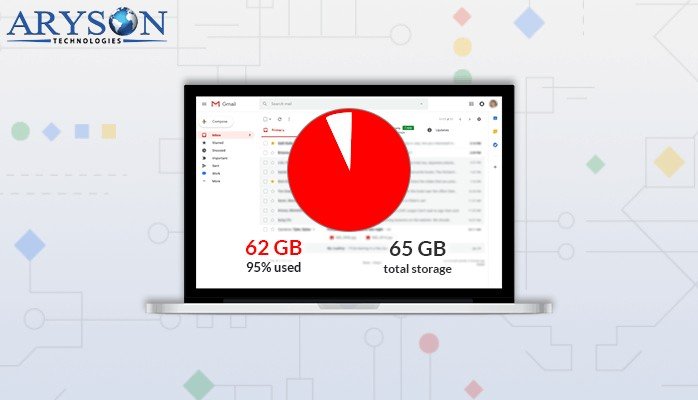
Every Google account comes with 15 GB of free storage shared across Gmail, Google Drive, and Google Photos. When that fills up, Gmail starts bouncing new emails, and Google’s answer is always the same: pay for Google One. But before you reach for your wallet, know this — you can free up Gmail storage without deleting important emails. The trick is to find what is actually eating the space, move the heavy stuff somewhere safe, and stop the silent clutter that refills the quota.
Most people’s Gmail storage is not full of important messages. It is full of forgotten attachments, years of promotions, and files sitting in Drive and Photos that count against the same 15 GB. This guide walks through every method, from the five-minute wins to the deep archive strategy.
First: Find Out What Is Actually Using Your Storage
Before deleting anything, look at the breakdown. Visit Google One storage (one.google.com/storage) while signed in. You will see exactly how much of your 15 GB goes to Gmail, Drive, and Photos. Many people discover Gmail is only using 3 GB while Drive holds 9 GB of old files — in which case cleaning Drive frees Gmail too, since the quota is shared.
In Gmail itself, the fastest diagnostic is the search operator has:attachment larger:10M. This surfaces every email with an attachment bigger than 10 MB. Sort through a few pages and you will usually find the same culprits: old video files, giant PDF reports, photo dumps from events years ago, and installation files someone emailed you once.
Method 1: Delete Large Attachments, Keep the Emails
You do not have to delete the message to reclaim the space — the attachment is what costs you. For emails where the attachment matters less than the conversation:
- Search has:attachment larger:5M in Gmail.
- Open an email, download the attachment to your computer or save it to an external drive if you might need it later.
- Forward the email to yourself without the attachment, or copy the important text into a note.
- Delete the original with the heavy attachment.
Alternatively, use filters by file type: filename:pdf, filename:zip, filename:ppt, filename:mp4 each surface a specific category of heavy files, so you can work through them in focused batches instead of scrolling randomly.
Method 2: Clear Out Promotions, Social, and Old Newsletters in Bulk
Promotional emails are the silent majority of most inboxes. Gmail already sorts them into the Promotions and Social tabs — use that:
- Open the Promotions tab and search older_than:1y to find promotions older than a year.
- Click the select-all checkbox, then click “Select all conversations that match this search” to grab everything, not just the visible page.
- Delete them all at once.
- Repeat with category:social older_than:1y for social notifications.
These are messages you were never going to read again. Deleting two years of promotions in one go often frees more space than people expect — and it makes the inbox dramatically calmer.
Method 3: Unsubscribe Aggressively to Stop the Refill
Cleaning once is pointless if the clutter returns. For every newsletter or promo sender you delete in bulk, take two seconds to unsubscribe:
- Open one email from the sender and click the Unsubscribe link Gmail shows at the top of promotional messages.
- For stubborn senders, create a filter: Settings, then Filters and Blocked Addresses, then Create a new filter with the sender’s address, and choose “Skip the Inbox (Archive it)” or “Delete it.”
- Do a monthly five-minute unsubscribe sweep: search unsubscribe in Gmail to find mailing-list messages and clear out any you no longer read.
Method 4: Empty Trash and Spam — the Step Everyone Forgets
Deleting emails does not immediately free storage. Deleted items sit in Trash for 30 days, and spam accumulates on its own. Both count against your quota until they are gone:
- In the left sidebar, open Trash and click Empty Trash now.
- Open Spam and click Delete all spam messages now.
Do this after every bulk cleanup. People who skip this step often wonder why their storage bar did not move.
Method 5: Clean Google Drive and Google Photos
Because the 15 GB is shared, Drive and Photos cleanup directly helps Gmail:
- Drive: Open drive.google.com, sort by storage used (the storage view shows largest files first), and delete or download old installers, duplicate exports, and abandoned project folders. Check the Drive trash and empty it.
- Photos: Large videos are the usual suspects. Download originals you want to keep to an external drive, then remove them from Photos. Consider switching future backups to a lower storage saver quality for new uploads.
- Shared files: Files others shared with you do not count against your quota — only files you own do. Focus on your own uploads.
Method 6: Archive Old Emails to a Second Free Account
This is the power move for people with years of email history they cannot bear to lose. Every Google account gets its own free 15 GB, so you can create a second account purely as an archive:
- Create a new Google account to serve as your archive.
- In your main Gmail, go to Settings, then Forwarding and POP/IMAP, and enable POP for all mail.
- In the new archive account, go to Settings, then Accounts and Import, and use “Import mail and contacts” to pull everything from the old account.
- Let the transfer complete — for very large inboxes this can take a day or two.
- Verify your important emails are searchable in the archive account.
- Back in the main account, delete the transferred old mail (or set POP to delete Gmail’s copy automatically), then empty the Trash.
The result: your main inbox drops to nearly zero storage used, while every old message remains fully searchable in the archive account. Sign into the archive account occasionally to keep it active.
Method 7: Back Up With Google Takeout, Then Delete Locally
If you want a copy you fully control, use Google Takeout:
- Visit takeout.google.com, deselect everything except Mail.
- Choose the MBOX format and start the export.
- Download the archive to your computer or an external drive.
- Once you have verified the backup opens correctly, delete those old emails from Gmail.
This is ideal for entire eras of email — an old job, a finished degree, a completed project — that you want preserved but never need in your daily inbox.
Method 8: Use Search Operators for Surgical Cleanup
Instead of scrolling, let Gmail’s search do the targeting. Combine operators:
- older_than:2y has:attachment — old emails with attachments, the highest-value targets
- larger:10M older_than:1y — big files you have not touched in a year
- from:noreply OR from:no-reply — automated messages that are almost never important
- filename:ics — old calendar invites with attachments
- category:updates older_than:2y — ancient receipts and notifications
Work through one operator at a time, in 15-minute sessions. It feels manageable, and each session visibly moves the storage bar.
Method 9: Tame Sent Mail and Duplicates
Your Sent folder often holds full copies of large attachments you sent years ago. Search in:sent has:attachment larger:5M and clear out the heavy ones — the recipient already has them, and you kept the important threads anyway. Also watch for duplicate emails created by old import tools or mailing-list echoes; searching a distinctive subject line usually reveals the copies.
Method 10: Compress Before You Send, Going Forward
Stop the problem at the source. When you need to email large files, zip them first or upload them to Drive and send a link instead of an attachment. A Drive link costs you a fraction of the storage of an emailed attachment, and the recipient gets the same file. Encourage regular contacts to do the same.
Method 11: Review Storage Quarterly
Set a recurring calendar reminder every three months: check one.google.com/storage, empty Trash and Spam, and run one search operator cleanup. Fifteen minutes four times a year keeps the quota from ever becoming an emergency again. This is the same kind of routine maintenance that keeps a whole computer fast — if you have not done it in a while, these tips for speeding up a slow laptop without buying anything pair well with an inbox cleanup session.
Mistakes to Avoid
- Deleting without checking Trash: The storage is not freed until Trash is emptied. Always finish the job.
- Paying for storage before auditing: Most “full” accounts have gigabytes of obvious junk. Clean first, then decide if you truly need more space.
- Deleting emails with legal or tax importance: Receipts, contracts, tax documents, and anything you might need as proof should be backed up with Takeout before deletion, not just deleted.
- Forgetting Drive and Photos: If Gmail shows low usage but the quota is still full, the space hog is in Drive or Photos, not your inbox.
- Archiving instead of deleting to “save space”: Archiving only hides emails from the inbox — it does not free a single byte of storage.
What About Just Paying for Google One?
Sometimes paying is the rational choice: if your time is worth more than the cleanup, or you genuinely need the space for a business. But treat it as a last resort, not a first step. Run through the methods above first — most people recover 5 to 10 GB in under an hour, which makes the paid plan unnecessary. And if you do pay, keep the quarterly review habit anyway, or you will be paying for an ever-growing pile of junk.
Frequently Asked Questions
How do I free up Gmail storage without deleting important emails?
Target the heavy, unimportant stuff: bulk-delete old promotions and newsletters, remove large attachments you have saved elsewhere, empty Trash and Spam, and clean Google Drive and Photos since they share the same 15 GB quota. For full inboxes, archiving old mail to a second free Google account preserves everything while emptying the main account.
Why is my Gmail storage full when I barely have any emails?
The 15 GB quota is shared across Gmail, Google Drive, and Google Photos. Check one.google.com/storage to see the breakdown — the space is often consumed by Drive files or Photos videos, not emails.
Does archiving emails free up Gmail storage?
No. Archiving only removes emails from your inbox view; they still count fully against your storage quota. To free space you must delete emails (and empty Trash) or move them to another account.
Do deleted emails immediately free up space?
Not until you empty the Trash. Deleted emails sit in Trash for 30 days and continue counting against your quota. Open Trash and click “Empty Trash now” after any cleanup.
Is it safe to use a second Gmail account as an archive?
Yes, as long as you keep it secure with a strong password and two-step verification, and sign in periodically so Google does not consider it inactive. Many people also keep a local backup via Google Takeout for extra safety.
What uses the most Gmail storage?
Large attachments — videos, photo batches, PDFs, and presentation files — usually dominate. A single video attachment can use more space than ten thousand plain-text emails. Searching has:attachment larger:10M shows your biggest offenders instantly.
Storage cleanup on your phone follows the same principle of targeting the heavy, useless files first. If your handset is also bursting, this guide to cleaning up iPhone storage without deleting photos applies the same triage approach to your device.













1 thought on “How to Free Up Gmail Storage Without Deleting Important Emails”
Comments are closed.