
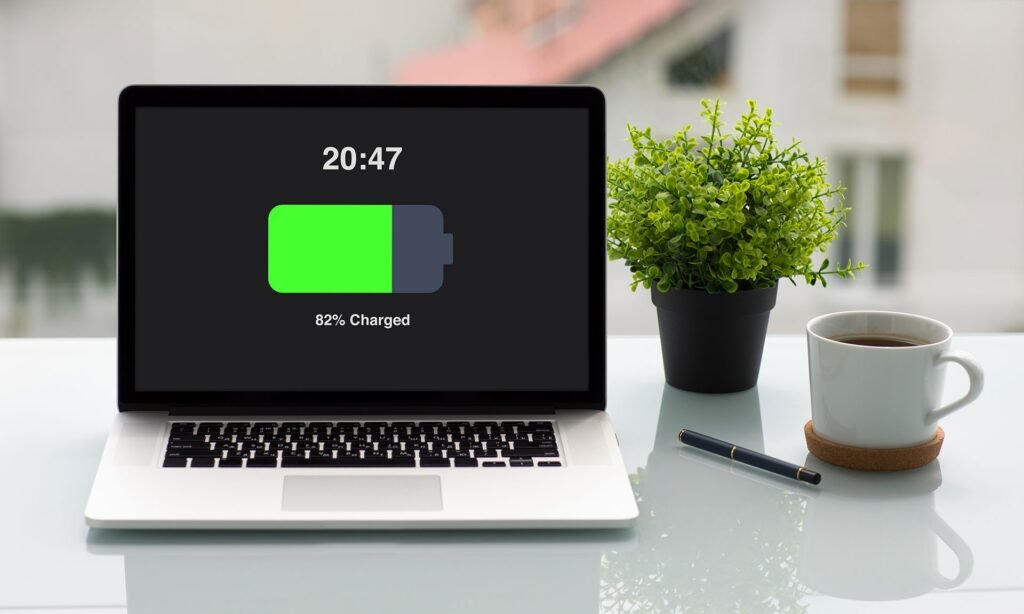
A laptop that works fine on a charger but dies the moment you unplug it is frustrating, especially when you need to move between rooms, attend a meeting, or finish work away from an outlet. Learning how to stop a laptop from shutting down when unplugged without a new battery starts with one important distinction: the problem is not always a dead battery. In many cases, the battery still holds a useful charge, but a wrong setting, a faulty power reading, a worn connection, or an overheated system forces an early shutdown.
This guide walks through the checks in the safest, most useful order. You will start with quick settings that take only a few minutes, then move to battery calibration, power-draw reduction, and hardware checks. You will also learn which warning signs mean you should stop and get the laptop inspected, because a swollen or damaged battery is never a problem to work around. Follow the steps in order, test after each major change, and keep notes on what changes the behavior. That methodical approach saves money, prevents unnecessary part replacements, and often restores hours of portable use.
Why a Laptop Shuts Down as Soon as You Unplug It
A sudden shutdown on battery power usually has one of several causes. The battery may report the wrong charge level, so the system thinks it is empty when it is not. A power plan may be set to shut down, sleep, or hibernate at a high battery percentage. A charger or charging port may not be delivering a full charge, even though the charging light turns on. The laptop may overheat on battery power, or a loose internal battery connector may break contact when the machine moves.
Shutdown, Sleep, and a Dead Battery Are Not the Same Thing
Pay attention to exactly what happens. If the screen goes dark but the power light stays on, the laptop may be sleeping rather than shutting down. If it restarts on its own when you plug it back in, a crash or overheating shutdown is more likely. If it only powers on while connected to the charger and shows no battery charge at all, the battery may not be charging or may not be detected. Each pattern points to a different fix, so describing the symptom accurately will save you from changing settings that were never the problem.
Start With These Quick Checks
Before changing advanced settings, run through these simple checks. First, charge the laptop fully while it is turned off or in sleep mode, then unplug it and note the starting percentage. Use it normally for light work, such as browsing or writing, and watch for the moment it shuts down. If it runs for a reasonable time before shutting down, the battery may simply need calibration or lighter power settings. If it shuts down within seconds, focus on the charger, the battery connection, and the battery health report.
Second, inspect the charger and cable. Try a different outlet, straighten any sharply bent cable, and make sure the connector sits firmly in the port. A charger with the wrong wattage can also cause trouble: a low-power charger may keep a laptop running but never fully charge the battery, so the machine dies quickly when unplugged. Use the charger that came with the laptop when possible, or a replacement that matches the original voltage and wattage rating.
Third, check for heat and blocked vents. Place the laptop on a hard, flat surface, clear dust from the vents with short bursts of compressed air, and avoid using it on a bed or blanket. Overheating can trigger a protective shutdown, and that shutdown can look exactly like a battery failure. If the fan runs loudly, the underside feels very hot, or shutdowns happen mainly during video calls or games, cooling and power management deserve attention before any battery decision.
Fix the Power Settings That Cause Early Shutdowns
Power settings are the most common fixable cause, and they are also the easiest to check. On many laptops, the critical battery action is set to shut down at a level that is too high, or a custom power plan limits the battery in a way that causes instability. Resetting these settings to sensible defaults often solves the problem immediately.
On a Windows Laptop
Open Settings, then System, then Power and Battery. Check the battery saver settings and make sure battery saver is not turning on at an unusually high percentage. Next, open the advanced power settings through the Control Panel power options. Look for the battery section, especially the critical battery level and the critical battery action. Set the critical battery level to a low value, such as five percent, and set the critical battery action to hibernate rather than shut down. Hibernation saves your work to storage and powers off safely, while a hard shutdown can lose unsaved work.
Also check the low battery level and low battery notification. If the low level is set very high, the laptop may warn you constantly and behave as if the battery is nearly empty. While you are in the power plan settings, choose a balanced plan rather than an extreme power-saving plan for testing. An aggressive plan can throttle the processor so sharply that the system becomes unstable under load. After saving the changes, restart the laptop, charge it fully, and test it unplugged again.
On a Mac Laptop
Open System Settings and look for the Battery section. Review the battery health information and the options for optimized battery charging. Optimized charging learns your routine and may hold the charge below full to protect long-term battery health. That feature is useful, but it can confuse a test if you expect a full charge. For diagnosis, charge the laptop, note the actual percentage, and test how long it runs rather than assuming the displayed number tells the whole story.
Also review the settings for what happens when the display sleeps and whether the machine is set to put hard disks to sleep when possible. If the laptop appears to shut down but wakes normally when you press the power button, a sleep setting is the likely cause. Adjust the display and sleep timers to longer values for testing, then tighten them again once you know the laptop stays on reliably.
Check Battery Health and Calibrate the Battery
Calibration helps when the battery gauge is wrong. Over time, the system can lose track of what a full charge and an empty battery actually look like, especially if the laptop almost always stays plugged in. Calibration forces the system to relearn those points, and it can turn a laptop that shuts down at forty percent into one that runs down smoothly to a low percentage.
To calibrate, charge the laptop to full while it is on, then leave it plugged in for a short while after it reaches full. Next, change the power settings temporarily so the laptop will not sleep or hibernate, and use it on battery power until it shuts down on its own. Leave it off for a while, then charge it fully without interruption. This full cycle gives the battery gauge fresh reference points. Do not repeat calibration constantly, because deep discharges add wear. One careful calibration is enough for diagnosis, and repeating it only occasionally is a reasonable maintenance step.
Reduce the Power Draw So the Battery Lasts Longer
A weak battery fails most often under heavy load. When the processor, screen, and wireless radios all demand power at once, voltage can dip and trigger a shutdown. Reducing the load gives the battery an easier job and often prevents the shutdown entirely.
Lower the screen brightness to a comfortable level, turn off keyboard backlighting when you do not need it, and close apps you are not using, especially video editing tools, games, and browsers with many open tabs. Turn off Bluetooth when it is not needed, and switch to a wired connection or offline work when possible. These changes do not just extend battery life by a few minutes. They reduce peak power demand, which is exactly what a struggling battery needs.
Update the operating system and drivers as well, because a buggy power driver can mismanage battery use. Check the laptop maker’s support page for battery, chipset, and power management updates. Install updates while plugged in, restart, and then test on battery power. If a shutdown problem started right after an update, on the other hand, check whether a newer fix is available or whether a recent driver can be rolled back safely. In that case, note the timing, because it points to software rather than hardware.
Inspect the Hardware Without Taking Unnecessary Risks
If the battery is removable, power the laptop down, unplug it, remove the battery, and inspect the contacts for dust, corrosion, or bent pins. Clean the contacts gently with a dry cloth, reseat the battery firmly, and test again. A loose battery can lose contact when the laptop moves, and that produces exactly the kind of instant shutdown described in this guide. For laptops with a sealed battery, do not pry the case open unless you have the right tools and experience. Instead, check for external warning signs.
Stop using the battery and seek professional inspection if you notice swelling, a trackpad or keyboard that feels raised, a case that no longer sits flat, an unusual smell, or excessive heat during charging. A swollen battery is a safety issue, not a settings problem. Likewise, if the charging port feels loose, sparks, or only works when the cable is held at an angle, the port may need repair. Continuing to force a damaged port can cause further damage. These are the cases where a replacement part or repair is the right answer, even though the goal of this guide is to avoid a new battery when possible.
Pros and Cons of the Main Workarounds
Each fix in this guide has trade-offs, and understanding them helps you choose the right combination. Changing the critical battery action to hibernate protects your work, but it also means the laptop will save and close your session sooner when the battery is genuinely low. Lowering screen brightness and closing background apps extends runtime, but it can make heavy work slower or less convenient. Calibration improves the accuracy of the battery gauge, but a full discharge adds a small amount of wear, so it should not become a daily habit.
Using a lower-performance power plan is another useful trade-off. A balanced or power-saving plan reduces peak demand and heat, which can prevent shutdowns, but it may make video calls or large files feel slower. Keeping the laptop plugged in whenever possible avoids the problem entirely, yet it keeps the battery at full charge for long periods, which can accelerate long-term wear. The best approach is usually a mix: use the balanced plan on battery, keep brightness moderate, calibrate once, and plug in for demanding tasks when an outlet is available.
Step-by-Step Troubleshooting Checklist
Work through this checklist in order and test after each stage. First, charge fully with the correct charger and note the starting percentage. Second, reset the critical battery level and action, and choose a balanced power plan. Third, calibrate the battery once and check the health report. Fourth, reduce power draw by lowering brightness, closing unused apps, and updating drivers. Fifth, inspect the charger, cable, port, and vents, and reseat a removable battery if it is safe to do so.
If the laptop now runs reliably until a low percentage, you have solved the problem without a new battery. If it still shuts down at a consistent high percentage after calibration and settings changes, the battery cells may be too weak to hold voltage under load. If it shuts down at random percentages, suspect a loose connection, a faulty charger, or overheating. Keep a simple log: starting percentage, shutdown percentage, what you were doing, and how hot the laptop felt. That log is extremely helpful if you later ask a repair shop for advice, because it turns a vague complaint into clear evidence.
Mistakes to Avoid
One common mistake is replacing the battery before checking settings. A new battery will not fix a critical battery action set too high, a faulty charger, or an overheating problem. Another mistake is disabling all power protections to force the laptop to stay on. Turning off low-battery warnings and shutdown protections can lead to sudden data loss and deeper battery damage. Protections exist for a reason, and the goal is to set them sensibly, not to remove them.
Frequently Asked Questions
Why does my laptop work on the charger but die instantly when unplugged?
The most common reasons are a battery that is not actually charging fully, a wrong battery gauge reading, a loose battery connection, or a power setting that triggers shutdown at a high percentage. Check the charger, reset the critical battery settings, and calibrate the battery before assuming the battery itself has failed.
Can calibration really fix a laptop that shuts down early?
Calibration can fix the problem when the cause is an inaccurate battery gauge. It teaches the system the true full and empty points, so the percentage becomes reliable again. It cannot restore lost chemical capacity, so a battery with very little capacity left will still run for a short time, but it should run down smoothly rather than cutting out suddenly.
Is it safe to keep using a laptop that shuts down on battery power?
It is generally safe if the battery shows no swelling, heat, smell, or physical damage, and if you save work frequently. Stop using the battery and seek inspection immediately if you notice swelling, a raised keyboard or trackpad, unusual heat, or a strange smell, because those signs point to a damaged battery.
Should I leave my laptop plugged in all the time?
Leaving it plugged in avoids shutdowns, but keeping a battery at full charge constantly can speed up long-term wear. A practical balance is to plug in for demanding work, use battery power for lighter tasks, and avoid leaving the laptop at full charge in a hot environment for long periods.
When is a new battery actually necessary?
A new battery becomes the sensible choice when the health report shows very low capacity, when calibration and settings changes do not stop sudden shutdowns, or when the battery shows physical damage. If the laptop runs reliably to a low percentage after the steps in this guide, replacement can usually wait.
Will a different charger fix the shutdown problem?
A correct charger can fix the problem when the original charger is underpowered, damaged, or not delivering a full charge. Use a charger that matches the original voltage and wattage. A charger with too little power may run the laptop while plugged in but never charge the battery properly, so the machine dies quickly when unplugged.













1 thought on “Stop a Laptop Shutting Down When Unplugged: A Complete Fix”
Comments are closed.