
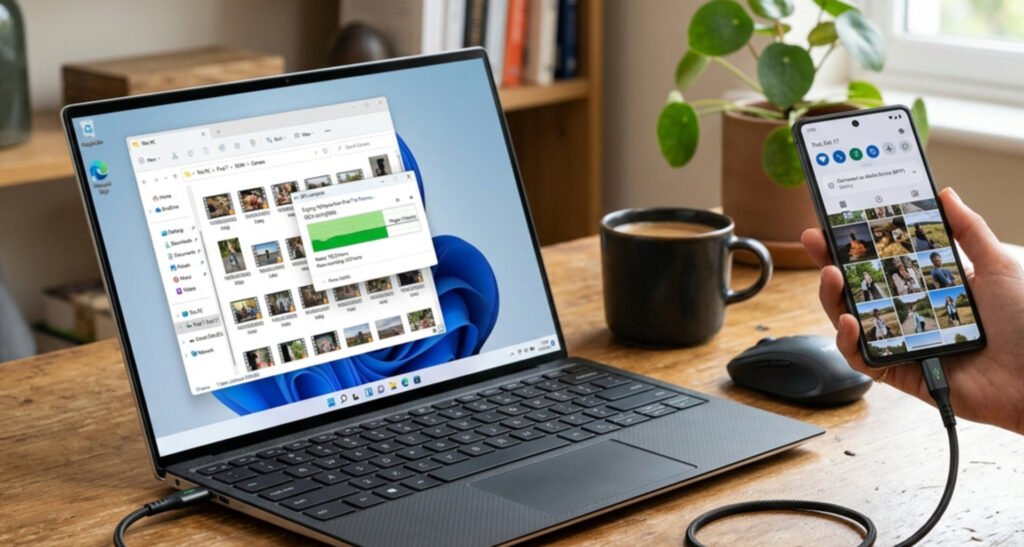
Every modern phone doubles as a camera, and those photos pile up fast. Birthdays, trips, screenshots of recipes you will never cook — before you know it, the “storage almost full” warning appears. Learning how to back up your phone photos without paying for cloud storage frees you from monthly fees and keeps your memories under your own control. You do not need a subscription to protect your pictures; you need a system, a destination for the files, and about an hour to set it up.
Why Back Up Your Photos Yourself Instead of Paying Monthly
Cloud storage is convenient, but it has a quiet cost. Free tiers typically hand you 5 to 15 gigabytes, which a busy phone fills in months. After that, you either pay every month forever or gamble that nothing goes wrong. A local backup strategy has its own tradeoffs, so let us be honest about both.
Advantages of free, subscription-free backups
- No recurring fees. You pay once for a drive or use hardware you already own.
- Full control and privacy. Your photos live on devices you can touch. Nobody can change the plan, scan your library for advertising, or lock you out.
- Works offline. A drive plugged into your computer does not care about Wi-Fi speed or data caps.
- Fast bulk transfers. Copying thousands of files over a USB cable is usually quicker than uploading them on a slow home connection.
The downsides you must manage
- You are responsible for redundancy. One drive is not a backup; two copies in two places is.
- No instant remote access unless you set up your own remote server, which takes effort.
- Hardware can fail. Drives die. That is why the plan below builds in more than one copy.
Method 1: Copy Photos to Your Computer With a Cable
This is the simplest method and the backbone of most free backup strategies. All you need is the charging cable that came with your phone.
On Windows
- Connect your phone to the computer with a USB cable.
- On an Android phone, swipe down the notification shade, tap the USB notification, and choose File Transfer. On an iPhone, tap Trust when the prompt appears.
- Open File Explorer. Your phone appears under “This PC” as a device.
- Navigate to the DCIM folder — this is where camera photos live — plus any folders with screenshots, downloads, or social app images.
- Copy (do not just move) everything into a dated folder on your computer, for example
PhonePhotos-Backup. - Let the copy finish, then verify the folder sizes match before deleting anything from the phone.
On Mac
- For iPhone, the Photos app or Image Capture (found in Applications) sees your phone as soon as you connect it. Select all and import into a folder.
- For Android on a Mac, use the free Android File Transfer app or a wireless option from the methods below, since Macs do not mount Android phones as drives by default.
Pro tips for cable transfers
- Copy in batches of a few thousand photos if your library is huge — it is easier to restart a failed batch than a failed whole-library copy.
- Keep the original folder structure the phone created; it makes finding things later much easier.
- Use Copy, not Move, until you have confirmed both a computer copy and a second copy elsewhere.
Method 2: An External Hard Drive or USB Flash Drive
Your computer’s own drive is fine as one copy, but a cheap external hard drive makes the whole thing portable and gives you the second copy every serious backup plan needs. A 1-terabyte external drive costs less than two years of a typical cloud photo plan and holds roughly 300,000 smartphone photos.
How to set it up
- Plug the external drive into your computer and create a folder named
Photo-Backup. - Inside it, create subfolders by month, like
JanuaryorFebruary, or by event. A simple rule: one folder per month, forever. - After each cable transfer, copy the new photos from the computer to the drive — or skip the middleman and copy straight from the phone to the drive if your computer allows it.
- Keep the drive somewhere safe, ideally not in the same room as the computer. A different room, a drawer at work, or a relative’s house all count.
Flash drives that plug straight into the phone
Dual-connector flash drives (USB-C or Lightning on one end, standard USB on the other) let you skip the computer entirely. Many ship with a free companion app that backs up your camera roll with one tap, then you plug the drive into any computer to archive the files. For a step-by-step look at clearing space as you go, see how to free up storage space on an old Android phone.
Method 3: Back Up Wirelessly to Your Own Network
If you hate cables, a few free setups copy photos over your home Wi-Fi automatically.
Use a NAS (network attached storage)
A NAS is a small box of hard drives that plugs into your router and acts as your private cloud. Free photo apps from the major NAS brands sync new photos from your phone whenever you are on home Wi-Fi. It is the closest thing to a paid cloud service without the subscription — the only cost is the box itself, and entry-level two-bay units are affordable.
Turn an old computer into a backup server
That old laptop in a closet can become a photo vault. Install free software that offers a photo-backup feature, point your phone’s app at it, and let it sync over Wi-Fi. Even simpler: share a folder on the computer over the network and copy photos into it from your phone with a free file-manager app.
Wireless transfer apps
Free apps that create a temporary Wi-Fi hotspot between phone and computer let you drag files in a browser window with no cable and no account. They are great for monthly backup sessions. The tradeoff is speed and the need to keep both devices awake during the transfer — which is also why overnight charging backups can make a phone run warm; if that worries you, read how to stop your phone overheating when charging overnight.
Method 4: Squeeze More Life Out of Free Cloud Tiers
Strictly speaking this still uses cloud storage — but you never pay for it. The trick is fitting more photos into the free space you already have.
- Compress before uploading. Slightly reducing resolution or exporting as efficient formats can shrink a photo library to a fraction of its size with no visible difference on a phone screen.
- Archive old years locally first. Keep only the current year in the free cloud tier for sharing and quick access; move older years to your external drive. This alone keeps most people under the free limit permanently.
- Delete the junk before it uploads. Blurry shots, duplicate bursts, and screenshots you no longer need can be a third of a camera roll. A ten-minute cleanup before backup day saves real gigabytes.
- Use manufacturer tools wisely. Some phone makers offer free backup utilities with their own storage quotas separate from the big cloud providers — check what your phone already includes.
Method 5: Use a Friend’s or Family Computer (the Buddy System)
Off-site copies protect you against theft, fire, and spilled coffee. If buying a second drive is not in the cards, ask a trusted person to hold an encrypted copy of your photo archive on their computer, and offer to do the same for them. Encrypt the folder with a password (free tools like 7-Zip or VeraCrypt do this) so your photos stay private even on someone else’s machine. Refresh the copy a few times a year.
The 3-2-1 Rule: The Only Backup Math That Matters
Professionals swear by the 3-2-1 rule: keep 3 copies of your photos, on 2 different types of media, with 1 copy off-site. A practical free version looks like this:
- Copy 1: on your phone (the originals, until you choose to delete them).
- Copy 2: on your computer or an external drive at home.
- Copy 3: on a second drive kept elsewhere, or an encrypted copy at a family member’s house.
You do not need to hit all three on day one. Start with copy 2, add copy 3 within a month, and you are ahead of the vast majority of phone owners.
Build a Monthly Photo Backup Routine
Backups fail when they depend on motivation. Make it boring and automatic:
- Pick a backup day. The first Sunday of the month works for most people. Put a recurring reminder on the phone.
- Delete the junk first. Spend ten minutes removing duplicates, blurry shots, and expired screenshots.
- Transfer the new photos. Cable, Wi-Fi app, or auto-sync — whichever method you chose above.
- Verify, then free space. Check that the new files actually copied (spot-check a dozen at random), then delete the backed-up originals from the phone if you need the space. If you are moving between devices too, our guide on how to transfer photos from an old iPhone to a new Android covers the migration side.
- Rotate the off-site copy. Every few months, refresh the drive or folder kept away from home.
Mistakes to Avoid
- Treating one drive as a backup. If your only copy is on a single external drive and the drive fails, the photos are gone. Redundancy is the whole point.
- Moving instead of copying. A failed “move” can destroy the only copy mid-transfer. Always copy first, verify, then delete.
- Backing up thumbnails by accident. Some transfer tools grab low-resolution previews. Spot-check file sizes — a real photo is usually 2–8 MB, not 200 KB.
- Forgetting videos. Videos eat storage fastest and are the files people miss most. Include them in every backup, not just still photos.
- Leaving the phone unlocked and unattended mid-transfer. A large copy can take an hour; keep the phone plugged in and awake.
- Never testing the restore. A backup you have never opened is a hope, not a backup. Once a year, restore a few photos to a different device and confirm they open.
Frequently Asked Questions
Can I back up my phone photos for free without any cloud service at all?
Yes. A USB cable plus a computer, or a flash drive that plugs directly into your phone, gives you a complete backup with no cloud and no account. Add a second drive stored elsewhere and you have a professional-grade setup for the one-time price of the drive.
How much storage do I need to back up my phone photos?
Check your phone’s photo app settings for the library size, then double it for growth. A 1-terabyte drive covers most people for many years — the average smartphone photo is 3–5 MB, so 1 TB holds roughly 200,000–300,000 photos plus plenty of video.
Is it safe to delete photos from my phone after backing them up?
Only after you have verified two separate copies open correctly. Copy first, spot-check a random sample of files, confirm the off-site copy exists, and then delete. Never delete based on a single copy.
What is the easiest free method for someone who is not tech-savvy?
A dual-connector flash drive with a companion backup app. Plug it into the phone, tap one button, wait, unplug. Repeat monthly. It requires no computer skills and no accounts.
Do free backup methods protect against phone theft or loss?
Yes — as long as one copy lives somewhere other than the phone itself. That is the job of the off-site copy: a drive at a relative’s house or an encrypted archive on a family computer keeps your photos safe even if the phone disappears.
Should I back up videos the same way as photos?
Absolutely, and prioritize them. Videos are larger and irreplaceable, and they are the first thing people regret skipping. Every method above handles video files; just make sure your drive has room, since a few minutes of 4K video can exceed a gigabyte.













2 thoughts on “How to Back Up Phone Photos Without Paying for Cloud Storage”
Comments are closed.