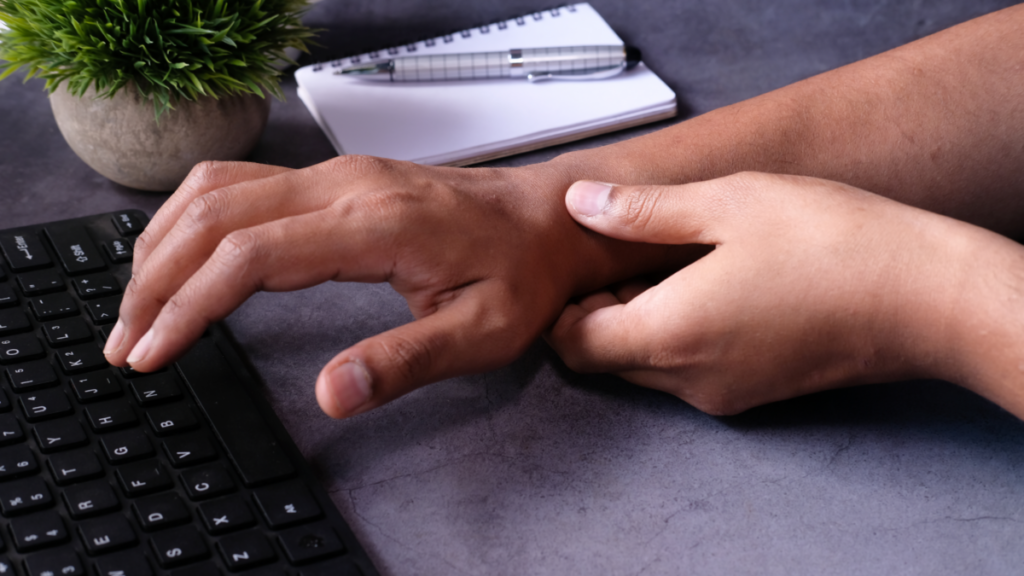
If your wrists ache, burn, or feel stiff every evening after a full day at the keyboard, you are not alone. Learning how to relieve wrist pain from typing all day starts with understanding one simple truth: your wrists were not designed to hold one fixed position for eight or ten hours straight. The pain is usually your body’s way of asking for better positioning, regular movement, and short recovery breaks. In this guide, you will find practical, step-by-step ways to ease wrist discomfort right now at your desk, a set of simple stretches and exercises, ergonomic setup tips that reduce strain in the first place, and honest guidance on when resting at home is enough and when a professional should take a look.
Why Typing All Day Hurts Your Wrists
Typing-related wrist pain usually builds up gradually rather than arriving all at once. The main culprits are easy to spot once you know what to look for:
- Repetitive micro-movements. Typing asks your wrist tendons and small hand muscles to repeat the same small motions thousands of times a day. Over weeks and months, this repetition can irritate the tissues without any single dramatic injury.
- Bent or cocked wrist position. When your wrists tilt up, down, or sideways to reach the keyboard, the tendons have to slide through a tighter path. Hours in that position add friction and fatigue.
- Force and tension. Many typists pound the keys harder than needed and keep their shoulders, forearms, and fingers tense. Stiff muscles tire faster and recover slower.
- No movement variety. Sitting in one posture without breaks means the same structures bear the load all day. Circulation in the hands and forearms also slows when you stay still.
- Poor workstation setup. A keyboard that sits too high, a mouse too far away, or a chair that leaves your arms unsupported can quietly force bad wrist angles for hours.
The good news is that most of these factors are within your control. Small changes to your position, regular short breaks, and a few daily stretches can make a noticeable difference for many people.
Fast Relief You Can Do at Your Desk Right Now
When the ache is active, you do not need to wait for the end of the workday. These techniques take minutes and require no equipment:
- Shake out your hands. Drop your hands to your sides and shake them loosely for 15 to 20 seconds, the way you would shake water off your fingers. This relaxes tense muscles and restores a little blood flow. Repeat every hour.
- Apply something cool or warm. A cool pack wrapped in a thin cloth pressed against a sore wrist for a few minutes can feel soothing after heavy typing. Later in the day, gentle warmth on the forearm muscles can help them relax. Alternate based on what feels better to you; stop immediately if anything increases pain.
- Massage your forearm. Place your forearm on your thigh or desk, palm up, and use the thumb of your other hand to knead slowly from just below the elbow toward the wrist for about a minute. Many typing muscles live in the forearm, not the wrist itself.
- Switch tasks for ten minutes. If you can, alternate typing with a non-typing task — a phone call, reading, filing, or a short walk to refill your water. Ten minutes of a different activity gives the irritated tissues a real break.
- Loosen your grip and reset posture. Unclench your jaw, drop your shoulders away from your ears, and consciously press the keys more lightly. Tension in one area of the body often leaks into others — for instance, our guide on how to stop jaw clenching during the day shows how relaxing one tense muscle group can ease strain everywhere.
7 Wrist Stretches and Exercises for People Who Type
Doing these once or twice a day — and especially during work breaks — helps keep the wrists, hands, and forearms supple. Move gently, never force a position, and keep each stretch comfortable. Breathe slowly throughout.
1. Prayer Stretch
Place your palms together in front of your chest, elbows out to the sides. Slowly lower your hands toward your waist while keeping the palms pressed together, until you feel a mild stretch along the inner wrists and forearms. Hold for 20 to 30 seconds, then release. Repeat three times.
2. Reverse Prayer
Place the backs of your hands together in front of your stomach, fingers pointing downward. Gently press the backs of the hands into each other and lift slightly until you feel a stretch across the tops of the wrists. Hold for 20 seconds and repeat three times.
3. Desk-Assisted Wrist Flexor Stretch
Stand or sit facing your desk. Place one palm flat on the desk with fingers pointing back toward you, keeping the arm straight. Lean gently forward until you feel a stretch through the wrist and the underside of the forearm. Hold 20 seconds, then switch hands. Repeat twice per side.
4. Wrist Extensor Stretch
Extend one arm in front of you, palm facing down. With your other hand, press the back of the outstretched hand gently downward so the fingers point toward the floor. Hold 20 seconds, feeling the stretch across the top of the forearm, then switch sides. Repeat twice per side.
5. Fist-to-Fan Opener
Make a loose fist, then open your hand wide, spreading the fingers as far apart as comfortable. Hold the open position for five seconds, then close back into a fist. Repeat ten times. This simple pumping motion works the small hand muscles that tire from keystrokes.
6. Wrist Circles
Hold your arm out with the fist loosely closed. Slowly draw circles in the air with your fist, ten rotations clockwise and ten counterclockwise. Keep the motion smooth and relaxed, using the wrist rather than the shoulder. Repeat with the other hand.
7. Rubber Band Finger Extenders
Place a standard rubber band around the tips of your fingers and thumb. Spread your fingers outward against the band’s resistance, hold two seconds, and release slowly. Repeat ten to fifteen times. This strengthens the muscles on the back of the hand and forearm, which help balance the muscles used for gripping and typing.
Pairing wrist exercises with gentle neck care matters too, because desk posture connects the neck, shoulders, and wrists in one chain — see our guide on how to relieve a stiff neck naturally for complementary stretches.
Fix Your Ergonomic Setup So Pain Stops Coming Back
Stretches treat the symptoms. Ergonomics treats the cause. Run through this checklist at your desk:
- Keep wrists neutral. Your forearms should float roughly parallel to the floor with wrists straight — not bent upward (extended) or drooping downward. If your keyboard sits above elbow height, lower it or raise your chair.
- Use a keyboard tray or lower your desk. Many standard desks are too high for comfortable typing. A keyboard tray, or simply lowering a height-adjustable desk, brings the keys down to a neutral height.
- Center yourself. Sit directly in front of the keyboard with the spacebar aligned to your midline, and keep the mouse close, at the same height, within easy reach of your right or left hand.
- Support your arms, not your wrists. A padded wrist rest is best used during pauses, not as a constant perch while typing. Pressing the wrist into a rest while typing can compress tissues under the wrist. Let your forearms share the load with armrests instead.
- Check your mouse. A mouse that is too small forces your fingers into a claw grip; one that is too big strains the wrist to move it. Experiment with size and grip style, and learn keyboard shortcuts for tasks you repeat often.
- Raise the monitor. The top of the screen should sit at or slightly below eye level, about an arm’s length away. Craning your neck down encourages a slouched posture that travels all the way down to the wrists.
- Consider a split or tented keyboard. Split keyboards let each hand sit at a more natural angle, and tented designs raise the middle so wrists stay straighter. They help some typists significantly, though they require a short adjustment period.
- Stand and move. If you have a sit-stand desk, alternate positions every 30 to 60 minutes. Even without one, stand up, roll your shoulders, and walk for a minute or two at least once an hour.
Pros and Cons of Popular Approaches
Several tools and habits get recommended for typing-related wrist pain. Here is an honest look at each:
- Wrist rests. Pros: comfortable during pauses; remind you to stop hovering your wrists in a tense position. Cons: resting on them while actively typing can increase pressure on wrist tissues; some people lean too hard on them.
- Wrist braces or supports. Pros: hold the wrist in a neutral position, which can ease nighttime aching and remind you to avoid extreme angles. Cons: wearing one all day can let supporting muscles weaken; they do not fix posture or typing technique.
- Ergonomic keyboards and vertical mice. Pros: encourage straighter wrist angles and lighter grips for many users. Cons: cost more, take days or weeks to get used to, and benefits vary by person.
- Voice dictation. Pros: dramatically reduces keystrokes for long writing tasks; great for giving your hands a rest day. Cons: accuracy still needs proofreading; not ideal in open offices or for highly technical typing.
- Stretching and exercise. Pros: free, quick, and address flexibility and muscle balance directly. Cons: must be done consistently; overstretching or pushing through pain can make things worse.
The strongest results usually come from combining approaches: better ergonomics, regular breaks, and a short daily stretch routine.
Mistakes That Make Wrist Pain Worse
- Pushing through sharp pain. A dull, tired ache after typing is one thing; sharp, shooting, or burning pain is a signal to stop the activity. Pushing through warning signals rarely ends well.
- Treating only the wrist. The wrist is often the victim, not the cause. Shoulders, neck, and forearms all feed into wrist strain — just as joint pain elsewhere responds best to a whole-body view, like the low-impact strategies in our article on relieving knee pain when climbing stairs.
- Marathon typing sessions. Four hours without a break is far harder on your wrists than four hours broken into chunks. Set a timer for a 2- to 5-minute break every 30 to 60 minutes.
- Death-gripping the mouse. A relaxed hand glides the mouse; a clenched hand holds it. Notice your grip tension several times a day and consciously lighten it.
- Cold, stiff starts. Typing intensely first thing in the morning on cold, stiff hands invites trouble. Warm up with a couple of the stretches above before a long session.
- Expecting one gadget to fix everything. An ergonomic keyboard or wrist rest helps, but without posture and break habits the pain often returns.
When to Rest at Home and When to See a Professional
For mild, activity-related soreness that eases with rest, stretching, and ergonomic fixes, most people manage comfortably at home over one to three weeks. Track whether the pain is trending down; slow improvement is a good sign.
Consider booking an appointment with a qualified healthcare professional if you notice any of the following general warning signs: pain that persists for several weeks despite rest and ergonomic changes, numbness or tingling in the fingers or hand, noticeable swelling, weakness when gripping objects, pain that wakes you at night, or any pain following an injury or fall. These are only general pointers, not diagnoses — a professional can evaluate your specific situation.
This article is for informational purposes only and is not medical/financial advice. Consult a qualified professional.
Frequently Asked Questions
How long does it take for wrist pain from typing to improve?
Mild typing-related soreness often improves within a couple of weeks once you fix wrist position, take regular breaks, and add daily stretches. More persistent discomfort can take longer, and pain that keeps worsening or fails to improve over several weeks deserves professional evaluation.
Are wrist rests good or bad for typing pain?
Wrist rests are helpful when used as intended: as a resting place for your hands during pauses in typing. Using them as a perch while you actively type can press into wrist tissues and make things worse. Keep your wrists floating in a neutral position while the keys are moving.
Can switching to an ergonomic keyboard cure my wrist pain?
An ergonomic keyboard can reduce strain for some people by keeping wrists straighter, but it is not a cure on its own. Pair it with proper desk height, regular breaks, and stretching for the best chance of lasting relief.
Should I stretch my wrists if they already hurt?
Gentle, pain-free stretching is usually fine and often feels good, but stop any movement that causes sharp or increasing pain. Rest, position changes, and light activity come first when the wrist is actively flared up; add stretches back in as comfort allows.
Does voice dictation really help with wrist pain?
For long writing sessions, dictation can substantially reduce the number of keystrokes your wrists absorb, giving irritated tissues real recovery time. It works best as part of a rotation with regular typing rather than a complete replacement.
Is it normal for both wrists to hurt after long typing days?
Yes — both wrists share the typing workload, so both can become sore after long days, especially with poor posture or no breaks. If one wrist is dramatically worse, or symptoms include numbness or swelling, get professional advice sooner rather than later.
The bottom line: wrist pain from typing is rarely caused by one bad day. It is the sum of thousands of small, repeated loads meeting a posture that needs adjusting. Fix the angle, take real breaks, stretch a little each day, and most aching wrists quiet down.