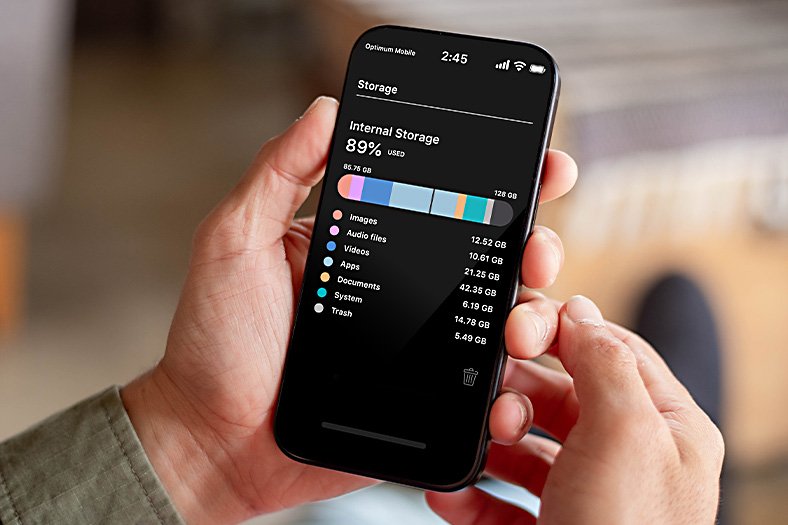
Nothing is more frustrating than trying to snap a photo or install an update and seeing the dreaded “Storage space running out” warning. Old Android phones — with 16 or 32 GB of internal storage — fill up fast, and every app update seems to eat a little more room. The good news: you can usually reclaim gigabytes without deleting your favorite apps or doing a factory reset. Here is how to free up storage space on an old Android phone safely, step by step.
Before you start, check what is actually eating your storage. Open Settings > Storage (on some phones it is Settings > Device Care > Storage). Android breaks it down into categories — apps, photos and videos, audio, system, and other files. This one screen tells you where to focus your effort. A phone full of photos needs a different fix than a phone full of app data.
1. Offload Photos and Videos to the Cloud (Biggest Win)
Photos and videos are usually the single largest storage category. Moving them to the cloud and deleting the local copies can free up several gigabytes at once.
- Use Google Photos. Open the app, turn on backup, and let it upload your library over Wi-Fi. Once backup is complete, tap your profile icon and choose Free up space — Google Photos deletes the local copies that are safely backed up. This alone often recovers 3–10 GB.
- Check the trash. Deleted photos sit in the trash for 60 days still taking up space. Empty the Google Photos trash and your phone gallery’s trash folder.
- Download WhatsApp and camera backups selectively. If WhatsApp auto-saves every meme to your gallery, disable media auto-download in WhatsApp’s settings under Storage and data.
2. Clear App Cache (Safe and Instant)
Cached data is temporary — thumbnails, preloaded images, saved pages. Clearing it does not delete your accounts, logins, or personal files. Clearing cache is the same safe cleanup concept used on smart TVs, and it works the same way on phones.
To clear cache for one app: Settings > Apps > [app name] > Storage > Clear cache. Browsers, social media apps, and streaming apps are the biggest cache hoarders — Chrome or Facebook can each hold over a gigabyte. Do not tap “Clear data” by mistake: that erases your login and settings. Cache only.
3. Remove Unused Apps — Including the Ones You Forgot
Most people have 15–30 apps they have not opened in months. On an old phone, each one is dead weight: the app itself, its updates, and its data. Go to Settings > Apps, sort by last used if your phone supports it, and uninstall anything you do not recognize or have not touched in three months.
Special targets on old phones:
- Pre-installed bloatware. You cannot uninstall some carrier or manufacturer apps, but you can disable them (Settings > Apps > Disable), which removes their updates and stops them from running.
- Duplicate apps. Two browsers, three photo editors, two file managers — keep the best one.
- Old games. Games are storage hogs, often 500 MB to 2 GB each.
4. Use Lite Versions of Heavy Apps
Full versions of Facebook, Messenger, Instagram, and TikTok are enormous and get heavier with every update. Their official “Lite” versions do nearly everything most people need at a fraction of the size — Facebook Lite is under 5 MB versus hundreds of megabytes for the full app. If an app you love offers a Lite version or a progressive web app (a website you can “install” from your browser), switch and never look back.
5. Delete Downloaded Files and Old Documents
Open your Files or My Files app and check the Downloads folder. Years of PDFs, APK installers, email attachments, and random images accumulate there. Sort by size and delete the big ones. Also check the Documents folder and any app-specific folders (screen recordings, voice memos, exported files) for things you no longer need.
6. Stream Music Instead of Storing It
Downloaded playlists, podcasts, and audiobooks eat storage silently. A single downloaded playlist can be several gigabytes. Switch your music and podcast apps to streaming-only over Wi-Fi, or reduce the download quality. Keep only one or two essential offline playlists — for the commute — and delete the rest.
7. Clean Up Messaging App Media
WhatsApp, Telegram, and Messenger quietly store every photo, video, and voice note anyone sends you — often duplicated in your gallery. In WhatsApp, go to Settings > Storage and data > Manage storage to see exactly how much space each chat uses, and delete media from old group chats in bulk. Then turn off auto-download for media so it stops accumulating.
8. Move Files to an SD Card (If Your Phone Has a Slot)
Many older Android phones support microSD cards — a cheap 64 GB card costs very little and can hold your entire photo library, music, and downloads. Move photos, videos, and documents to the card via the Files app, and set your camera app to save new photos to the SD card by default. Note that most apps must stay on internal storage to work properly; the SD card is best for media and documents, not apps.
9. Stop Background Apps From Re-Filling Your Storage
Freeing space once is not enough if apps keep silently downloading data in the background. Two settings help:
- Restrict background data for apps you rarely use (Settings > Apps > Mobile data > disable background data).
- Review permissions. Apps that track your location or constantly sync generate and store data. A guide to stopping apps from tracking your location on iPhone and Android doubles as a cleanup step, since fewer background services means less cached data accumulating.
10. Update Android and Your Apps
This sounds backwards, but updates sometimes reduce storage use. Newer app versions can be more storage-efficient, and Android system updates occasionally include storage optimization. More importantly, an up-to-date old phone runs better overall — if your phone feels sluggish as well as full, these tips to speed up a slow Android phone without deleting apps pair perfectly with the storage cleanup here.
11. The Nuclear Options: When Nothing Else Is Enough
If you have done everything above and storage is still critically low, two stronger measures remain:
- Adoptable storage (older Android versions). Some old phones let you format an SD card as internal storage, effectively merging it with your phone’s memory. This is slower than real internal storage and ties the card to the phone permanently, so it is a last resort.
- Factory reset. Back up everything important (photos, contacts, WhatsApp chats), then reset via Settings > System > Reset > Erase all data. A fresh start removes years of accumulated junk. Only reinstall the apps you actually use — this is the real secret to keeping the phone lean afterward.
Mistakes to Avoid
- Deleting files before backing them up. Once photos are gone, they are gone. Confirm cloud backup is complete before tapping “free up space.”
- Tapping “Clear data” instead of “Clear cache.” Clear data logs you out and erases app settings. Cache is the safe button.
- Installing sketchy “cleaner” apps. Many cleaner apps are adware or barely work. Android’s built-in storage tools are better and safer.
- Deleting the “Android” or “data” folders. System folders in your file manager should be left alone — deleting the wrong thing can break apps.
- Ignoring the problem until the phone stops updating. Critically full storage can block security updates. Clean up before you hit zero.
A Monthly Maintenance Routine to Keep Storage Free
Cleanup works best as a habit, not a one-time emergency. Spend 15 minutes once a month on this routine and your old phone will stay healthy indefinitely:
- Run “Free up space” in Google Photos. One tap after confirming backup. This is the single fastest monthly win.
- Clear the cache of your five heaviest apps. Check Settings > Storage > Apps, sort by size, and clear cache on the top offenders. Browsers and social apps refill cache quickly, so this bears repeating.
- Empty all trash folders. Google Photos trash, your gallery trash, and the Files app trash each hold deleted files for weeks. Empty them manually.
- Review WhatsApp storage. Open WhatsApp > Settings > Storage and data > Manage storage and clear out large files from chats you no longer care about. Old group chats are the biggest offenders.
- Delete screenshots and screen recordings. These pile up in a dedicated folder most people never open. Bulk-delete them monthly.
- Uninstall one app you stopped using. Just one per month keeps the app list from growing again.
Set a recurring calendar reminder for the first Sunday of each month. Fifteen minutes of prevention beats a panicked two-hour cleanup when you need to install an important update or capture a moment that will not wait.
What to Do When Your Phone Will Not Update
Old Android phones sometimes refuse to install system or app updates because there is not enough free space to download and unpack them — a cruel loop where the phone needs space to get the update that might help with space. If you hit this wall, the emergency sequence is: clear cache on your browser and social apps first (fastest big gain), delete the Downloads folder contents, remove one or two large games, and try the update again. Once it installs, continue with the full cleanup above. If updates fail even after freeing several gigabytes, the phone’s storage hardware may be failing — back up your data immediately, because that is a warning sign, not a software quirk.
FAQ
How do I check what is using my storage on Android?
Go to Settings > Storage. Android shows a breakdown by category — apps, images, videos, audio, and system. Tap any category to see details and jump to cleanup options.
Is it safe to clear cache on Android?
Yes. Cached data is temporary and apps rebuild it as needed. Clearing cache frees space without deleting your accounts, photos, or files. Just make sure you tap “Clear cache” and not “Clear data.”
Why is my phone storage full when I have no apps?
The usual culprits are photos and videos, WhatsApp media, cached data, and the system itself. Check Settings > Storage to find the largest category — it is almost never “mystery,” it is just hidden across a few folders.
Will deleting photos from my phone delete them from Google Photos?
Only if you delete them through Google Photos itself. Using the “Free up space” feature deletes just the local copies after confirming they are backed up. Photos you delete manually from the Google Photos app are removed from the cloud too — empty the trash to finalize.
Does a factory reset speed up an old phone?
Often, yes — it removes years of accumulated junk and misbehaving apps. Back up your data first, and only reinstall apps you actually use afterward to keep the benefit.
How much free space should I keep on my Android phone?
Aim to keep at least 10–15% of total storage free. Android needs breathing room for updates, cache, and normal operation — a phone at 99% full will run noticeably worse than one at 85%.