
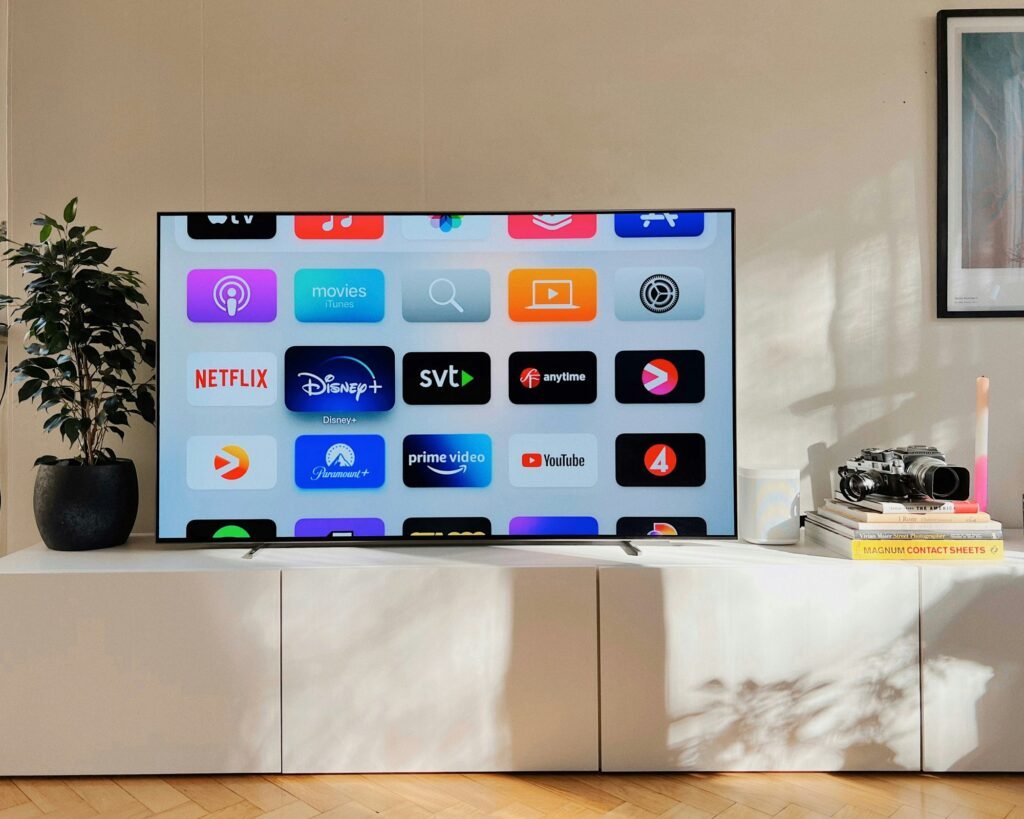
Apps take forever to open, streaming buffers constantly, or the whole TV feels sluggish — and you suspect the cache is to blame. Learning how to clear cache on a smart TV without losing apps is one of the easiest maintenance tasks you can do, and it is completely safe when done right. Clearing the cache deletes temporary junk files; it does not delete your apps, your logins, or your settings. Below you will find exact steps for Samsung, LG, Google/Android TV, Roku, and Fire TV, plus what to do when clearing the cache is not enough.
What Is Cache, and Why Does Clearing It Help?
Cache is temporary data your TV stores to load things faster: app thumbnails, login tokens, recently watched artwork, interface graphics. Over months, this data piles up, gets corrupted, or goes stale — and a TV has far less memory than a phone, so it feels the clutter sooner. Symptoms of a bloated cache include:
- Apps that crash on launch or freeze mid-stream.
- Streaming that buffers even though your internet is fast.
- The home screen taking noticeably longer to load.
- “Not enough storage” warnings despite few installed apps.
- A TV that feels slower than when you bought it.
Clearing the cache removes only this temporary data. Your installed apps stay installed, you stay logged in, and your picture and sound settings do not change. That is the key difference between clearing cache (safe, routine) and clearing data or factory reset (which logs you out or wipes everything). Never tap “clear data” when you mean “clear cache” — we will flag exactly where each option lives below. If you are also seeing mysterious charges from apps you forgot about, it is worth reading how to cancel unused subscriptions you forgot you’re paying for while you are in cleanup mode.
How to Clear Cache on a Samsung Smart TV (Tizen)
Samsung TVs running Tizen do not offer a single “clear all cache” button, but they do let you clear each app’s cache individually — which is actually the safest approach.
- Press the Home button on your remote.
- Go to Settings → Support → Device Care.
- Select Manage Storage. You will see a list of installed apps with their storage usage.
- Choose an app that is misbehaving (or the biggest storage hog), select it, and choose Clear Cache.
- Repeat for other heavy apps like streaming services and the web browser.
- Back in Device Care, run Start Device Care to let the TV optimize memory automatically.
Important: on this screen you may also see Delete and app data options. Do not choose anything labeled data deletion or uninstall unless you actually want the app gone. Clearing cache never removes the app or your login.
Shortcut trick: on many Samsung models, holding the Power button on the remote until the TV restarts (about 5 seconds) performs a soft reboot that flushes temporary system cache. It is not a substitute for clearing app cache, but it helps with general sluggishness.
How to Clear Cache on an LG Smart TV (webOS)
LG’s webOS handles cache a little differently — there is no per-app cache button in older versions, but the steps below cover every webOS generation.
- Press Home on the Magic Remote and open Settings (the gear icon).
- Go to All Settings → General → Storage (on newer webOS versions).
- Select apps you want to clean and look for cache-clearing or storage options per app.
- On older webOS versions without per-app cache controls: clear the web browser cache via the browser’s own settings menu, then restart the TV by holding the power button or unplugging it for 60 seconds.
webOS cleanup tip: webOS keeps recently used apps suspended in memory. Fully closing apps you are not using (hover the app, press the options button, select close) frees memory and reduces the need for cache clearing in the first place.
How to Clear Cache on Google TV / Android TV
Google TV and Android TV (Sony, TCL, Hisense, Philips, Chromecast with Google TV) give you the most control — per-app cache clearing works just like on an Android phone.
- Go to Settings → Apps → See all apps.
- Select the app that is misbehaving.
- Choose Clear cache. (You will see Clear data right below it — do not tap that; it logs you out and resets the app.)
- Repeat for other apps, especially streaming apps and the system launcher.
System-wide cleanup: In Settings → System → Storage, you can see what is consuming space. Some models also offer Settings → System → Restart, which clears temporary system files on reboot.
Pro tip: if one streaming app constantly misbehaves, clearing its cache monthly as routine maintenance keeps it fast. And the same phone-cleanup logic applies here — the tips in our guide to speeding up a slow Android phone without deleting apps translate surprisingly well to Android TV, since both run the same operating system family.
How to Clear Cache on Roku
Roku does not expose a cache-clearing menu at all, but there is a well-known remote sequence that flushes the system cache:
- Make sure you are on the Roku Home screen.
- Press Home 5 times, Up once, Rewind 2 times, Fast Forward 2 times.
- The TV will freeze for a moment, then restart — this clears the system cache.
For individual apps: Roku apps cannot have their cache cleared separately. If one app misbehaves, remove the channel (highlight it, press *, choose Remove channel), restart the Roku (Settings → System → System restart), then reinstall the channel. Reinstalling logs you out of that app, so have your login handy — but your other apps and settings are untouched.
How to Clear Cache on Amazon Fire TV
Fire TV devices (sticks and built-in Fire TV editions) follow the Android pattern:
- Go to Settings → Applications → Manage Installed Applications.
- Select the app you want to clean.
- Choose Clear cache. (Again: avoid Clear data unless you want to log out and reset the app.)
- Repeat for other apps. Heavy offenders are usually the built-in browser, streaming apps, and the Appstore itself.
Extra Fire TV tip: Fire TV sticks have very limited storage. In Manage Installed Applications, sort by size and clear cache on the largest apps first. Uninstall apps you never use — this is the single biggest performance win on a Fire TV Stick.
What Clearing the Cache Will NOT Delete
To put your mind at ease, here is what stays exactly as it was after a proper cache clear:
- All installed apps — nothing gets uninstalled.
- Your logins and passwords in every app.
- Wi-Fi settings and network connections.
- Picture, sound, and accessibility settings.
- Your watchlists, profiles, and viewing history.
- Parental controls and PINs.
The only things removed are temporary files: thumbnail images, cached web pages, old ad creatives, and stale interface data. The apps will rebuild the cache they need within a day or two of normal use — which is fine, because fresh cache is fast cache.
If Clearing the Cache Is Not Enough
Sometimes the cache is not the real problem. Work through these in order:
1. Restart the TV properly
Most “smart TV problems” are fixed by a real restart, not just turning the screen off. Unplug the TV from the wall for 60 seconds, then plug it back in. This clears system memory that the power button alone does not touch.
2. Check your internet connection
Buffering and slow app loading are often network issues, not TV issues. Run a speed test on the TV’s browser or in network settings. If the TV is on Wi-Fi and far from the router, try a wired Ethernet connection or move the router closer. Congested 2.4 GHz networks are a common culprit — switch the TV to 5 GHz if your router offers it.
3. Update the TV software
Outdated firmware causes app crashes and sluggishness. Check Settings → Support → Software Update (Samsung), Settings → All Settings → General → About → Check for Updates (LG), or the equivalent on your platform. Also update individual apps through the app store — an old app on new firmware (or vice versa) misbehaves.
4. Free up storage space
TVs need free storage to breathe. If storage is nearly full, uninstall apps you do not use and delete old recordings or screenshots. Aim to keep at least 10–15 percent of storage free.
5. Reinstall the problem app
If one specific app keeps crashing after a cache clear, uninstall it, restart the TV, and reinstall it fresh from the app store. This replaces any corrupted files the cache clear could not reach.
6. Factory reset (last resort)
A factory reset wipes everything and returns the TV to out-of-box state. It will fix almost any software problem — but you will lose apps, logins, and settings, so treat it as the final option. Write down your app logins before resetting.
Mistakes to Avoid
- Tapping “Clear data” instead of “Clear cache”: the single most common mistake. Clear data logs you out of the app and resets it. The options sit right next to each other on Android TV and Fire TV — read carefully.
- Clearing cache obsessively: the cache exists to make things faster. Clearing it daily just forces the TV to rebuild it constantly. Once a month — or when an app misbehaves — is plenty.
- Ignoring full storage: cache clearing helps, but a TV with 98 percent of storage full will stay slow. Uninstall unused apps.
- Blaming the TV for internet problems: if every app buffers, the issue is almost certainly your connection, not cache. Test your speed before spending an hour in settings menus.
- Using the “power button” as a restart: most smart TVs go into standby, not a real shutdown. Unplug for 60 seconds for a true restart.
Frequently Asked Questions
Will clearing the cache on my smart TV delete my apps?
No. Clearing cache only removes temporary files like thumbnails and stored web data. Your apps, logins, settings, and watchlists all stay intact. Only “Clear data,” “Uninstall,” or a factory reset removes apps or logs you out.
How often should I clear my smart TV’s cache?
Once a month is a good routine, plus any time a specific app crashes, freezes, or buffers excessively. Clearing cache more often than that provides no benefit — the TV will just rebuild the cache during normal use.
Why is my smart TV still slow after clearing the cache?
The most likely causes are a weak Wi-Fi connection, nearly full storage, outdated software, or one corrupted app that needs reinstalling. Work through the troubleshooting steps above in order — a proper unplug-and-restart plus a software update fixes the majority of remaining cases.
Does Roku have a cache I can clear?
Roku does not offer a cache menu, but the remote sequence — Home 5 times, Up once, Rewind twice, Fast Forward twice — flushes the system cache and restarts the device. For individual Roku apps, remove the channel, restart the system, and reinstall it.
Is it safe to clear cache on a Samsung TV?
Completely safe. Samsung’s Device Care → Manage Storage lets you clear each app’s cache without touching your apps, logins, or settings. Just avoid any option labeled data deletion or uninstall on that same screen.
Will clearing cache log me out of Netflix and other streaming apps?
No. Clearing cache does not touch login credentials — you will stay signed in to Netflix, Disney+, YouTube, and every other app. Only “Clear data” or uninstalling and reinstalling an app forces you to log in again.












1 thought on “How to Clear Cache on Your Smart TV Without Losing Apps”
Comments are closed.