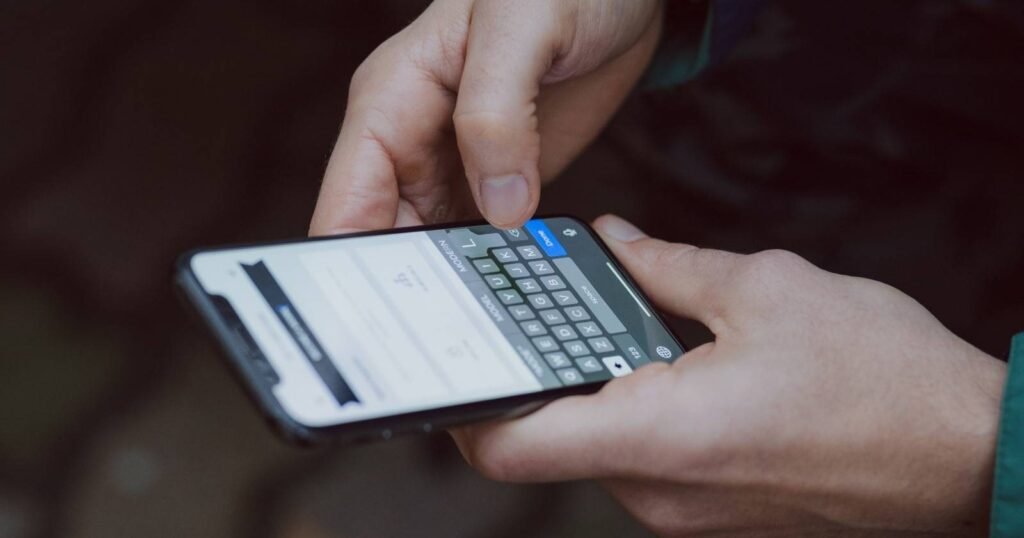
Learning how to stop your phone from autocorrecting words without turning it off is the best middle ground for most people. You want the keyboard to catch genuine typos, but you do not want it to change a name, a slang word, or a technical term into something else entirely. Turning autocorrect off solves the unwanted changes, yet it also removes a useful safety net and slows your typing down. The smarter fix is to keep autocorrect on and teach it what you actually mean. With a few settings, a personal dictionary, and some simple habits, you can keep the helpful parts while stopping the frustrating rewrites. This guide covers iPhone, Gboard, and Samsung Keyboard step by step.
Why Your Phone Keeps Changing Your Words
Autocorrect is a prediction system, not a mind reader. It guesses what you meant from the keys you pressed and the words you have used before. When you type fast, your fingers land near the wrong key, so the keyboard picks the closest familiar word. That works well for common words such as “teh” becoming “the,” but it fails on words the keyboard has never seen. Names, nicknames, brand names, technical terms, abbreviations, slang, and words from another language are the most common victims. If the keyboard does not know a word, it assumes you made a mistake.
A polluted dictionary makes things worse. Every time you accept a wrong correction, the keyboard learns that the wrong version is what you wanted. A wrong language setting causes trouble too. If you type in another language while the keyboard is set to English only, it will keep “correcting” good words into English lookalikes. Checking your active languages is one of the fastest fixes. The good news is that every cause here can be fixed without switching autocorrect off.
Teach the Keyboard Your Words First
The most effective habit is to teach the keyboard instead of fighting it. When it underlines a word or suggests a different one, do not just press space and move on. If your word is correct, tap the word itself in the suggestion bar to tell the keyboard to leave it alone. On iPhone, tap the word you typed in the prediction bar. On Gboard, tap the word as typed in the suggestion strip. Repeat this a few times for the same word and the correction usually stops for good, because the keyboard adds the word to your usage pattern.
You can also practice a stubborn word in a notes app. Type it, reject the correction, and use it in a few different sentences. The keyboard builds its model from your real typing, so the more often it sees a word used correctly, the less it treats that word as a mistake. This works especially well for names. Type a family name or a friend’s unusual spelling in several messages, reject the correction each time, and within a few days the keyboard usually learns it. Consistency matters: every accepted wrong correction undoes the training.
How to Fix Autocorrect on iPhone Without Turning It Off
On iPhone, open Settings, then General, then Keyboard. Leave “Auto-Correction” switched on and use the tools around it instead. Keep “Predictive Text” on, because it shows the word you typed as an option in the prediction bar, and tapping it keeps your spelling. Leave “Check Spelling” on too, since it only underlines possible errors instead of changing them. These two settings give you control without removing the safety net.
The most powerful iPhone tool is Text Replacement. Go to Settings, then General, then Keyboard, then Text Replacement, and tap the plus button. Type the word exactly as you want it in the Phrase field, and type the same word in the Shortcut field. From then on, typing that shortcut inserts the correct spelling. Add names, technical terms, and words from another language you type often. Text Replacement syncs across your Apple devices on the same account. Also check your keyboards list in the same screen: add any language you type in, and remove languages you never use.
How to Fix Autocorrect on Gboard for Android
Gboard gives you finer control than most people realize. Open any app where you can type and tap the settings gear on the keyboard, or go to Settings, then System, then Languages and input, then On-screen keyboard, then Gboard. Tap “Text correction” and leave “Auto-correction” switched on. Keep “Show suggestion strip” on, because it lets you pick the word you typed, and keep “Suggest next word” on so the keyboard keeps learning your style.
The key Gboard feature is the personal dictionary. In Gboard settings, tap “Dictionary,” then “Personal dictionary,” then your language, then the plus button. Add the word exactly as you want it, with a short shortcut or none at all. Once a word is in the personal dictionary, Gboard treats it as a real word and stops correcting it away. Add names, slang, abbreviations, and workplace terms. If Gboard offers a correction strength level, choose the gentler setting. If it keeps changing words in a second language, add that language under Languages and turn on multilingual typing.
How to Fix Autocorrect on Samsung Keyboard
Samsung Keyboard keeps its settings in a different place from Gboard. Go to Settings, then General management, then Samsung Keyboard settings. Keep “Predictive text” on, since it shows suggestions and lets you choose the word you typed, and keep “Auto replace” on for now, because the fix below works better than switching it off. Tap “Text shortcuts” to open the Samsung version of Text Replacement. Add the correct spelling of any word that keeps changing, with a matching shortcut, and Samsung will insert your saved version instead of guessing.
Check the language settings as well. Under Languages and types, select only the languages you actually type in, since a wrong language is a common reason Samsung phones change ordinary words. If the keyboard changes a word while you type, look at the suggestion bar before pressing space: your original word is usually shown there, and tapping it keeps your spelling and teaches the keyboard. Repeat this for a few days and most stubborn words settle down. If one still refuses, delete it from any learned-word list and add it again cleanly through Text Shortcuts.
Use Text Replacement and Shortcuts for Stubborn Words
Text replacement is the closest thing to a permanent fix for a word autocorrect refuses to leave alone. You give the keyboard a rule: when you type a certain shortcut, insert a certain phrase. By making the shortcut the same as the word itself, you lock in the correct spelling. This works for names, place names, brand names, technical terms, and words from another language, as well as longer phrases such as an email address or a sentence you type every day. Setting up five or ten replacements for your worst words removes most daily frustration in one sitting.
For best results, add the word in the exact capitalization you use most, and add both versions if you use it lowercase and capitalized. Keep shortcuts short but distinct, since a shortcut that is also an ordinary word can trigger at the wrong time. Review your list every few weeks and remove shortcuts you no longer need. Text replacement works on iPhone, Gboard, and Samsung Keyboard while autocorrect stays on, which is exactly the balance this guide aims for. For more iPhone setup help, see our guide on how to free up space on iPhone without deleting photos.
Keep Predictive Text and Lower the Correction Strength
Predictive text and autocorrect are related, but they are not the same thing. Predictive text shows suggestions above the keyboard and lets you choose, while autocorrect changes words without asking. When predictive text is on and autocorrect is set to a gentler level, you get the speed of suggestions without the surprise of a word changing after you moved on. On iPhone, keep Predictive Text on and use the suggestion bar. On Gboard, keep the suggestion strip on and tap your original word when it appears. On Samsung Keyboard, keep Predictive Text on for the same reason.
Some Android phones let you adjust how strongly autocorrect corrects. If your phone offers a choice between fixing only obvious typos and correcting more aggressively, pick the gentlest level that still catches real typos. You can also turn off “Auto-capitalization” and “Double-space period” separately if those cause trouble, without touching autocorrect. Another useful trick is to slow down slightly at the end of a word autocorrect usually changes. Pause, glance at the suggestion bar, and tap your word before pressing space. That pause soon becomes a habit and prevents most unwanted changes.
Reset the Keyboard Dictionary as a Last Resort
If your keyboard has learned too many wrong words and keeps changing the same ones no matter what you do, resetting the dictionary gives you a clean start. Treat this as a last resort, because it erases everything the keyboard learned about your typing, including the good habits. On iPhone, go to Settings, then General, then Transfer or Reset iPhone, then Reset, then Reset Keyboard Dictionary. Your Text Replacement entries are stored separately and should survive, but check them after the reset and re-add anything important.
On Android, the path depends on your keyboard. For Gboard, look in the keyboard settings for storage options and clear the learned words or dictionary data rather than the whole app, if that choice is offered. For Samsung Keyboard, look for a reset option in its settings or clear the keyboard data from app settings. Only reset after trying text replacement and the personal dictionary first. After a reset, spend a few days rejecting wrong corrections and adding your important words to the dictionary right away, so the keyboard relearns the correct versions. To protect the device you type on, see our guide on how to keep a phone screen from cracking without a case.
Should You Try a Third-Party Keyboard?
A third-party keyboard can help if your built-in keyboard keeps fighting you, but it is not the first step, and it comes with trade-offs. Keyboards such as Microsoft SwiftKey offer their own autocorrect engines and personal dictionaries, and SwiftKey is known for learning slang and names quickly. Trying a different keyboard for a week tells you whether the problem is your settings or the keyboard engine itself. If the new keyboard handles your words better, you can stay with it.
The downside is privacy and convenience. A keyboard sees everything you type, including passwords and private messages, so only install keyboards from trusted developers with a clear privacy policy. Some third-party keyboards also lack features you rely on, such as a specific voice typing tool or clipboard history. Before switching, note your text replacements and dictionary entries, since they may not transfer. For most people, fixing the built-in keyboard is faster and safer, and a third-party keyboard is best kept as a backup plan.
Mistakes to Avoid When Fixing Autocorrect
The biggest mistake is turning autocorrect off in frustration and forgetting to turn it back on, which leaves you typing slower and with more typos. A related mistake is accepting a wrong correction without noticing it, especially in a work message or an important email. Read each message once before sending it and look for words that changed meaning. Another common mistake is adding too many shortcuts at once with overlapping triggers, which can make the keyboard insert the wrong phrase. Add your worst words first, test them for a day, then add more.
Do not ignore the language setting, since many autocorrect problems come from a keyboard set to the wrong language or two languages fighting each other. Fix the language first, then add dictionary entries. Do not reset the keyboard dictionary as a first step, because you lose good learning along with the bad. And do not install a random keyboard app just because it promises to fix autocorrect. The steady approach works best: teach the keyboard your words, lock in stubborn ones with text replacement, keep predictive text on, and only reset or switch if the problem survives.
Frequently Asked Questions
How do I stop autocorrect from changing one specific word?
Add it to your personal dictionary or text replacement list with the exact spelling you want. On iPhone, use Text Replacement in Keyboard settings. On Gboard, use the personal dictionary. On Samsung Keyboard, use Text Shortcuts. Also tap the word you typed in the suggestion bar whenever it appears.
Can I keep autocorrect on but make it less aggressive?
Yes. Keep autocorrect on, keep predictive text and the suggestion strip on, and look for a correction strength option in your keyboard settings. Choose the gentler level if one is offered. Text replacement for your worst words also makes autocorrect feel much less aggressive.
Why does autocorrect change names all the time?
Names are often uncommon spellings the keyboard has never seen, so it assumes a name is a typo for a common word. Adding names to your contacts, personal dictionary, and text replacement usually fixes this. Typing the name while rejecting the correction a few times teaches the keyboard to accept it.
Why does my keyboard correct words in another language?
This usually means the keyboard is set to only one language while you type in two. Add the second language in your keyboard settings and turn on multilingual typing if offered. On iPhone, add the language keyboard. Then add common words from that language to your personal dictionary.
Will resetting my keyboard dictionary delete my text replacements?
On iPhone, resetting the dictionary removes learned words, but Text Replacement entries are stored separately and normally stay. On Android, clearing keyboard data can remove personal dictionary entries, so check your dictionary after a reset and re-add anything important. Note your key entries before you reset.
Is a third-party keyboard better for autocorrect?
It can be, but not always. Some third-party keyboards learn slang and names faster and offer more control over correction strength. The trade-off is privacy, since a keyboard sees everything you type. Fix your built-in keyboard first, and only switch if the problem remains after a week of training.
Stopping unwanted autocorrect changes without turning the feature off is mostly about training rather than switching things off. Add important words to the personal dictionary, lock in stubborn words with text replacement, check your languages, and keep predictive text on so you can choose your spelling when it matters. Do those steps once, reject wrong corrections for a few days, and your keyboard will start working with you instead of against you. If one word still refuses to behave, a dictionary reset gives you a clean start, and a trusted third-party keyboard is a reasonable backup. Keep autocorrect on, teach it well, and typing becomes faster and far less frustrating.