
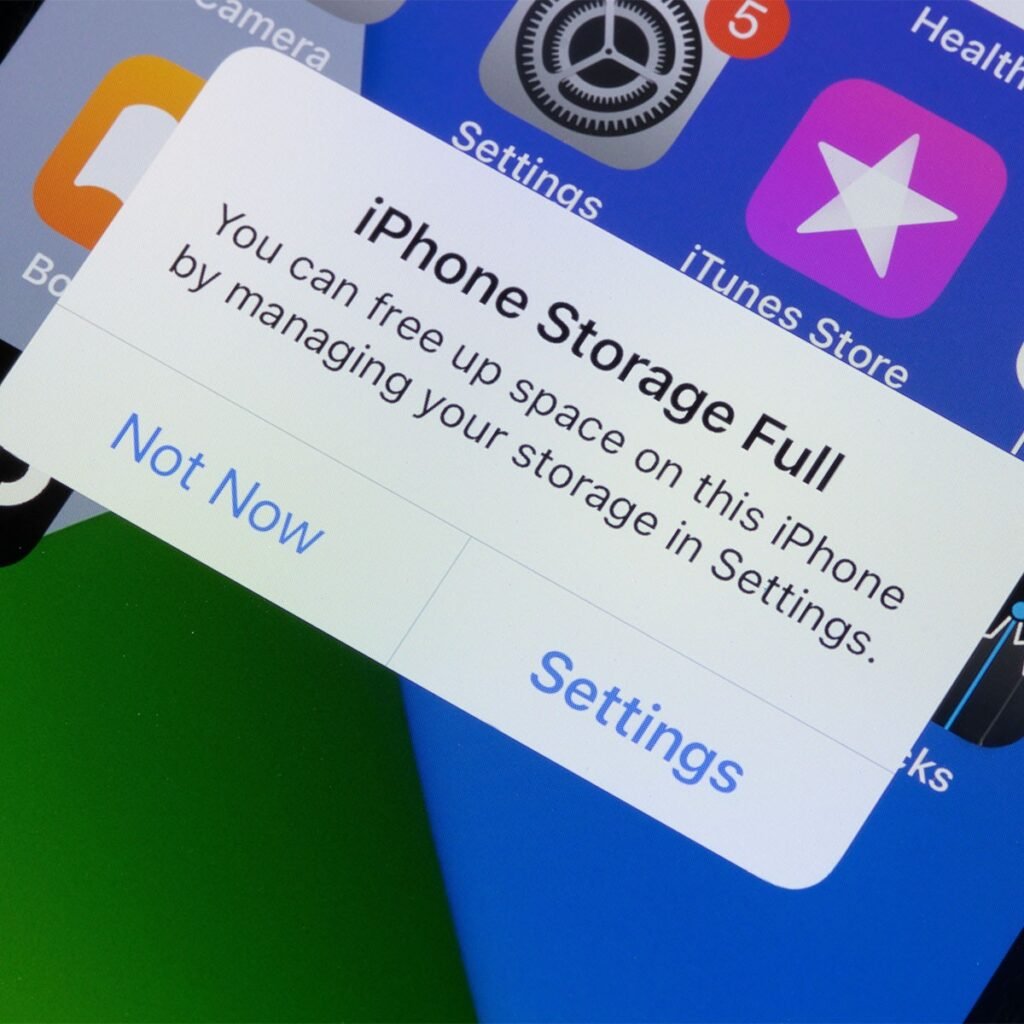
Nothing is more annoying than trying to take a photo or download an app and seeing the “iPhone Storage Full” warning. The instinct is to start deleting photos, but for most people that is both painful and unnecessary. Learning how to free up space on iPhone without deleting photos is mostly about finding the hidden storage hogs — apps you forgot about, old message attachments, cached data, and videos — and clearing those first.
Before you delete anything, check what is actually using your space. Go to Settings, then General, then iPhone Storage. Your iPhone will show a color-coded bar and a list of apps sorted by size, along with personalized recommendations. That screen is your map for everything in this guide. One important warning first: if you use iCloud Photos, deleting a photo on your iPhone deletes it everywhere, including iCloud and your other Apple devices. Never delete photos as a quick fix if iCloud Photos is turned on. Use the methods below instead.
Turn On iCloud Optimize Storage
If you use iCloud Photos, the Optimize iPhone Storage setting is the single biggest space saver available. With this setting on, your iPhone keeps small, space-efficient versions of your photos and videos on the device, while the full-resolution originals live in iCloud. You can still view, share, and edit everything normally. The full version downloads automatically when you need it, as long as you have an internet connection.
To turn it on, go to Settings, tap your name at the top, then iCloud, then Photos, and select Optimize iPhone Storage. The change takes effect gradually as your phone replaces full-size files with smaller versions, so you may not see the full saving immediately. Give it a day or two, ideally while charging and connected to Wi-Fi.
This setting only helps if you have iCloud storage space available. The free iCloud plan includes 5 GB, which fills up fast with photos. If your iCloud storage is full, Optimize Storage cannot move originals to the cloud. You can check your iCloud usage in Settings under your name, then iCloud. If it is full, either upgrade to a paid plan, which is inexpensive for the smallest tier, or back your photos up to a computer or another cloud service and then manage the local copies carefully. Do not turn off iCloud Photos as a shortcut without understanding what it does, because that can create duplicate copies and confusion.
Offload Unused Apps
Apps are often the biggest hidden storage hogs, and most people have several they never open. Offloading an app removes the app itself but keeps its documents and data, so when you reinstall it later, everything is exactly where you left it. It is a much safer option than deleting an app outright.
Turn on automatic offloading by going to Settings, then General, then iPhone Storage, and enabling Offload Unused Apps. Your iPhone will then automatically offload apps you have not used in a while whenever storage gets low. You can also offload individual apps manually from the same screen: tap any app in the list and choose Offload App. Start with large games and apps you have not opened in months.
Check the app sizes in that list before you decide. Some apps are small but hold huge amounts of data, such as video streaming apps with downloaded shows, or social media apps with large caches. For those, offloading may not help much, because the data stays. The next sections cover how to deal with app data directly.
Clear Messages Attachments
The Messages app quietly accumulates photos, videos, GIFs, and stickers from every conversation, and the total can reach several gigabytes. To see it, go to Settings, then General, then iPhone Storage, tap Messages, and look at the categories such as Photos, Videos, and GIFs. You can review the largest attachments and delete the ones you no longer need, such as old memes and forwarded videos.
Another option is to set messages to delete automatically after 30 days or one year instead of keeping them forever. Go to Settings, then Messages, then Keep Messages, and choose a shorter period. This does not affect your current conversations immediately, but it prevents the pile from growing. Before changing this setting, make sure you do not need to keep old conversations for legal or personal reasons.
Voice messages and audio messages also take up space. If you send and receive many of them, they add up. Deleting old voice messages from long conversations is a quick win, and you can do it from inside the conversation by long-pressing a message and choosing More.
Manage WhatsApp and Other Chat Media
WhatsApp, Telegram, and similar apps can consume enormous amounts of storage, because every photo and video sent to you is saved to your phone by default. In WhatsApp, go to Settings, then Storage and Data, then Manage Storage. You will see chats sorted by size, with the largest at the top. Tap a chat to review its media and delete large videos and duplicate images you do not need.
Also change the auto-download settings so this problem does not come back. In WhatsApp, go to Settings, then Storage and Data, and set media auto-download to Wi-Fi only, or turn it off entirely for videos. You can still tap any individual photo or video to download it when you actually want it. This one change prevents gigabytes of unwanted media from accumulating in the future.
Other apps with media, such as Instagram, TikTok, and Facebook, store caches that grow over time. Unlike Android, iOS does not offer a simple clear-cache button for most apps. The reliable fix is to delete the app and reinstall it, which wipes its cache while your account and content stay safe in the cloud. Do this for social media apps that show a large Documents and Data size in the storage list, but only after confirming you know your login details.
Deal With Videos and Downloads
Video takes up far more space than photos. A single minute of 4K video can use hundreds of megabytes, so a few long clips can fill a phone. You do not need to delete them. Instead, back them up to iCloud, Google Photos, or a computer, and let Optimize Storage handle the local copies. If you have old videos you rarely watch, move them to a computer or external drive and remove the local copies through the backup service rather than deleting them from the Photos app.
Check your Downloads folder and the Files app. PDFs, email attachments, and files saved from Safari or other apps accumulate silently. Open the Files app, browse On My iPhone, and delete files you no longer need, especially large PDFs and video files. Also check the Downloads folder inside Safari by tapping the download icon in the address bar.
Streaming apps are another common culprit. Netflix, YouTube, Spotify, and Apple Music all let you download content for offline use, and those downloads can take up many gigabytes. Open each app’s download settings and remove shows, movies, or playlists you have already watched or listened to. Keep only what you genuinely plan to use offline.
Clear Safari Cache and Browser Data
Safari stores website data, cookies, and cached files to load pages faster, and over time this cache can grow to hundreds of megabytes. To clear it, go to Settings, then Safari, then Clear History and Website Data. This will sign you out of some websites, so make sure you know your important passwords before doing it.
If you use Chrome or another browser, open the browser’s own settings and clear its browsing data from there. Each browser keeps its own cache, so clearing Safari does nothing for Chrome, and vice versa. Clearing browser data is a modest saving on its own, but it is worth doing as part of a general cleanup.
Review Photos Smarter, Without Deleting Them
Even without deleting photos, you can reduce the space they use. First, check the Recently Deleted album. Photos you deleted in the past 30 days still sit there taking up space. Open Photos, go to Albums, scroll to Recently Deleted, and tap Delete All to free that space immediately. Only do this if you are sure you do not want those photos back.
Next, look for duplicates and similar photos. The Photos app has a Duplicates album under Utilities that finds exact copies, and you can merge them safely. Burst photos are another hidden cost: a single burst can contain dozens of near-identical shots. Open a burst, keep the best one or two, and discard the rest. Screenshots also pile up quickly. Delete old screenshots of boarding passes, memes, and receipts you no longer need.
Finally, consider changing your camera settings for the future. Recording video in 4K uses roughly four times the space of 1080p. Unless you need the highest quality, switch to 1080p at 30 frames per second in Settings, then Camera, then Record Video. Turn on the option to keep photos in the space-saving HEIF format rather than JPEG, which is the default on newer iPhones and already saves space.
Other Hidden Storage Hogs
System Data, sometimes labeled Other, is a category that confuses many people. It includes caches, logs, and temporary files that iOS manages itself. It can grow large, and the most reliable way to shrink it is to restart your iPhone, update to the latest iOS version, and, if it stays stubbornly large, back up your phone and restore it. A restore is a bigger step, so try the simpler fixes first and only consider it if System Data is taking up many gigabytes.
Mail attachments are another quiet consumer of space. If you use the Mail app, old emails with large attachments stay on your phone. Delete emails with big attachments you no longer need, then empty the trash. The same applies to the Notes app if you store scanned documents or large attachments there.
Podcasts and audiobooks download automatically by default in some apps. Open the Podcasts app settings and limit downloads, or delete old episodes you have already heard. Audiobooks in the Books app can also be removed from the device while staying in your library for re-download later.
A Simple Monthly Routine
Storage problems return if you clean up once and never again. A quick monthly routine keeps them away. Once a month, open iPhone Storage, check the top five apps, and offload or clean anything that has grown unexpectedly. Review WhatsApp storage, clear old message attachments, and delete screenshots you no longer need. Check that Optimize Storage is still on and that your iCloud storage is not full.
Set a reminder for the first weekend of each month. Ten minutes of cleanup is enough to keep a phone comfortable, and it prevents the panic of a full-storage warning at the worst possible moment, such as when you are trying to record a video of something important.
FAQs
Will turning on Optimize Storage delete my photos?
No. Optimize Storage keeps smaller versions on your phone and stores the full-resolution originals in iCloud. Your photos remain accessible, and the full version downloads automatically when you open, edit, or share a photo.
What happens if I delete a photo with iCloud Photos turned on?
Deleting a photo on your iPhone deletes it from iCloud and from every other device signed in to the same Apple ID. That is why you should use the methods in this guide instead of deleting photos to free space. Deleted photos stay in the Recently Deleted album for 30 days before they are permanently removed.
Is offloading an app the same as deleting it?
No. Offloading removes the app itself but keeps its documents and data on your phone. When you reinstall the app, everything is restored. Deleting an app removes both the app and its data.
Why is System Data taking up so much space on my iPhone?
System Data includes caches, logs, and temporary files that iOS creates during normal use. Restarting your phone and updating iOS often reduces it. If it stays very large, a backup and restore is the most reliable fix.
Can I clear the cache of an app on iPhone?
iOS does not offer a general clear-cache button for third-party apps. For apps with a large cache, the reliable fix is to delete the app and reinstall it, which wipes the cache. Make sure you know your login details first.
How much iCloud storage do I need for Optimize Storage to work?
You need enough free iCloud space to hold your full-resolution photos and videos. The free 5 GB plan fills up quickly, so most people with large photo libraries need a paid plan. Check your usage in Settings under your name, then iCloud.













3 thoughts on “How to Free Up Space on iPhone Without Deleting Photos”
Comments are closed.