Learning how to transfer files from Android to PC without a cable saves you from the classic desk-drawer hunt for a USB cord that is never there when you need it. Whether you want to move photos, videos, documents, or a whole folder of downloads, there are several reliable wireless methods, and the best one depends on how much you are moving and what you have installed. Some are built into your devices already; others need only a browser.
This guide covers every practical method, step by step: Quick Share, Phone Link, Snapdrop in the browser, cloud storage, Bluetooth, and file-manager apps. You will also find a quick comparison so you can pick the right method in seconds, plus troubleshooting for the most common hiccups.
Quick Comparison: Which Method Should You Use?
- Quick Share (formerly Nearby Share): Best for fast transfers of any file size with no setup beyond a toggle. Both devices just need Wi-Fi and Bluetooth on.
- Phone Link: Best if you regularly move files between the same phone and PC. One-time setup, then drag-and-drop simplicity.
- Snapdrop in a browser: Best when you cannot or will not install anything. Works on any PC with a browser, on the same Wi-Fi network.
- Google Drive or OneDrive: Best when the devices are in different locations, or when you want the files accessible everywhere afterward.
- Bluetooth: Best as a last resort for small files when there is no Wi-Fi network available. Slow, but it always works.
Method 1: Quick Share (Fastest Built-In Option)
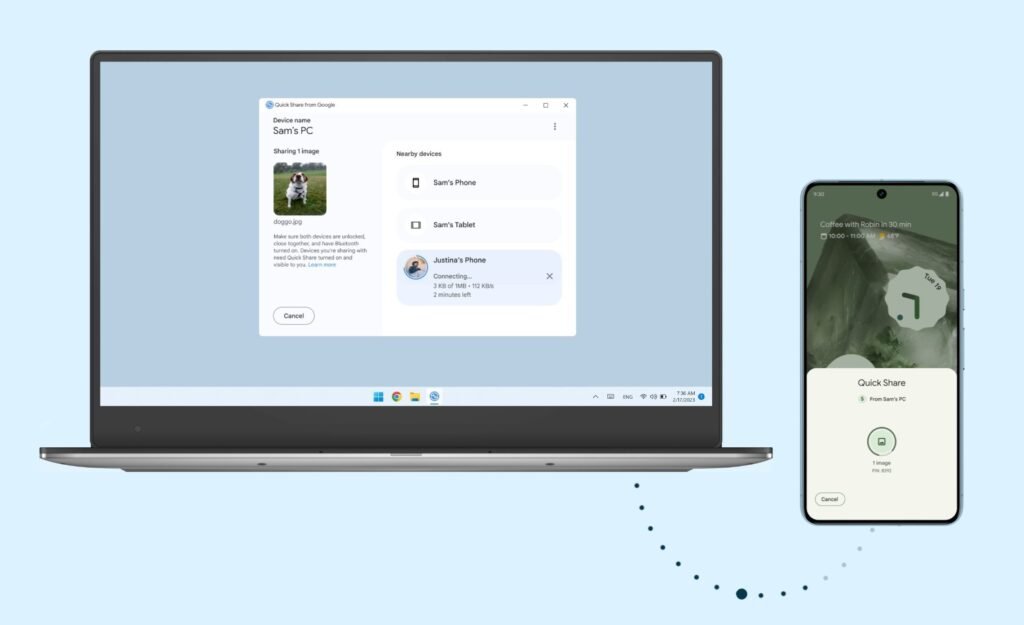
Quick Share is Google’s wireless transfer feature, built into most Android phones and available on Windows PCs. It sends files directly over Wi-Fi, so it is fast, often tens of megabytes per second, and it does not use your internet data or upload anything to the cloud.
On your PC
- Make sure Quick Share is installed. On many Windows 10 and 11 PCs it comes preinstalled; if not, download it from Google’s Quick Share page and sign in with your Google account.
- Open Quick Share and set “Who can share with you” to your preference. “Your devices” is the most private option.
On your Android phone
- Make sure Wi-Fi and Bluetooth are turned on.
- Open the file you want to send, tap Share, then choose Quick Share.
- Select your PC from the list of nearby devices.
- Accept the transfer on your PC. The file lands in your Downloads folder by default.
To send multiple files, select them all in your file manager first, then share once. For large batches such as a folder of videos, compress the folder into a ZIP file first: one transfer is faster and less error-prone than dozens of small ones.
Method 2: Phone Link (Best for Regular Transfers)
Microsoft’s Phone Link app creates a persistent connection between your Android phone and Windows PC. After a one-time setup, moving files becomes nearly effortless, and you also get your phone’s photos, messages, and notifications on your PC.
- On your PC, open the Phone Link app (preinstalled on Windows 10 and 11).
- On your Android phone, install Link to Windows from the Play Store and sign in with the same Microsoft account as your PC.
- Follow the pairing steps, which usually involve scanning a QR code shown on the PC.
- To send a file, select it on your phone, tap Share, choose Link to Windows, then pick your PC. On the PC, a notification appears; click it to open the file or its folder.
- Received files save to a Phone Link folder inside Downloads by default. You can change this in Phone Link settings on the PC.
Phone Link works over your local Wi-Fi network, so keep both devices on the same network for the fastest results. If you deal with phone photos often, pair this with a proper backup routine like how to back up phone photos without paying for cloud storage so your pictures are protected, not just moved.
Method 3: Snapdrop in the Browser (No Install Needed)
Snapdrop is a free website that works like a local AirDrop. Both devices open the same page, they discover each other on the local network, and you drag files across. Nothing to install on either side.
- Connect both your phone and PC to the same Wi-Fi network.
- On both devices, open a browser and go to snapdrop.net.
- Each device appears as an icon on the other’s screen. Tap or click the other device’s icon.
- Choose the files to send. The other device is prompted to accept and download them.
Snapdrop is ideal on shared or work computers where you cannot install apps. Its one requirement is that both devices share the same local network; it will not work across different networks or over mobile data alone.
Method 4: Cloud Storage (Google Drive or OneDrive)
Uploading to the cloud and downloading on the PC works from anywhere, even when the devices are in different cities. The trade-off is speed: everything travels through your internet connection, so large videos take a while.
- On your phone, open the Google Drive app and tap the + button, then Upload, and select your files.
- On your PC, open drive.google.com in a browser, find the files, and download them.
- For frequent transfers, install the Drive desktop app so uploaded files sync automatically to a folder on your PC.
OneDrive follows the same pattern and integrates tightly with Windows. Cloud transfer also doubles as a backup, which is worth doing anyway if your phone holds irreplaceable photos. For moving pictures between phones rather than to a PC, see how to transfer photos from an old iPhone to a new Android.
Method 5: Bluetooth (The Last-Resort Option)
Bluetooth is slow, expect several minutes for a single photo, but it needs no Wi-Fi network at all, which makes it useful as a fallback.
- Turn on Bluetooth on both devices and pair them: on the PC go to Settings, then Bluetooth and devices, then Add device; on the phone, find the PC under available devices and confirm the pairing code.
- On the PC, right-click the Bluetooth icon in the taskbar and choose Receive a file before sending.
- On your phone, open the file, tap Share, choose Bluetooth, and select your PC.
- Accept the transfer on the PC. Files usually land in the Documents, Bluetooth Exchange Folder, or Downloads.
Use Bluetooth only for small files like documents or a handful of photos. For anything bigger, find Wi-Fi and use one of the faster methods above.
Method 6: File Manager Apps With Wi-Fi Transfer
Many Android file manager apps include a Wi-Fi transfer feature that turns your phone into a tiny local web server. You open an address in your PC’s browser and download files directly, with no cloud and no PC software.
- Install a file manager with Wi-Fi transfer on your phone and open its transfer or “remote manager” feature.
- The app displays a local address, something like 192.168.1.5:8080.
- Type that address into your PC’s browser while both devices are on the same Wi-Fi.
- Browse your phone’s files in the browser and download what you need, or drag files from the PC into the browser to send them to the phone.
This method is excellent for bulk transfers of mixed file types at full Wi-Fi speed, and your files never leave your local network.
Troubleshooting Common Problems
- Devices cannot see each other: Confirm both are on the same Wi-Fi network, not one on Wi-Fi and the other on mobile data. Temporarily disable any VPN on either device, since VPNs often block local network discovery. Restarting Wi-Fi on both devices fixes most discovery issues.
- Transfer stalls or fails partway: Large single files are the usual culprit. Split them, or compress into a ZIP first. Move closer to the router for a stronger signal.
- Quick Share option missing on the phone: Update Google Play Services and the system software. On some phones the feature is labeled Nearby Share in older software versions.
- Phone Link will not pair: Sign out and back into the same Microsoft account on both devices, and make sure Link to Windows has all requested permissions on the phone.
- Slow speeds on Wi-Fi methods: Switch both devices to the 5 GHz band of your router if available; it is much faster than 2.4 GHz at close range.
Mistakes to Avoid
- Emailing large files to yourself: Email attachments have size limits and clog your inbox. Use a real transfer method instead.
- Using public Wi-Fi for sensitive files: On open networks, prefer cloud services with encryption or wait until you are home. If you must use public Wi-Fi, review how to stop apps tracking your location for broader phone privacy hygiene.
- Forgetting where files landed: Each method has its own default folder. Check Downloads first, then the app-specific folder, before assuming a transfer failed.
- Transferring originals with no backup: Moving is not backing up. If the PC copy is the only copy, one drive failure loses everything.
Frequently Asked Questions
Can I transfer files from Android to PC without any app?
Yes. Open snapdrop.net in the browsers on both devices while they share the same Wi-Fi network, and drag files across. No installation needed on either side.
Why is my wireless transfer so slow?
The most common causes are a weak Wi-Fi signal, the 2.4 GHz band instead of 5 GHz, or an active VPN blocking local traffic. Move closer to the router and disable the VPN to test.
Does Quick Share use mobile data?
No. Quick Share transfers directly between devices over Wi-Fi or Wi-Fi Direct. It does not upload to the internet or consume your data plan.
What is the fastest way to move a large video from Android to PC?
Quick Share or a file manager’s Wi-Fi transfer, both running over the 5 GHz Wi-Fi band, give the fastest wireless speeds. For a single huge file, compressing is unnecessary, but for folders, ZIP first.
Can I transfer files when my phone and PC are in different locations?
Yes, but only through the internet: upload to Google Drive or OneDrive on the phone, then download on the PC. Local methods like Quick Share and Snapdrop require the same network.
Is it safe to transfer files over public Wi-Fi?
Local transfer methods on a trusted home network are fine. On public Wi-Fi, avoid moving sensitive documents over unencrypted local methods; use a cloud service or wait until you are on a private network.